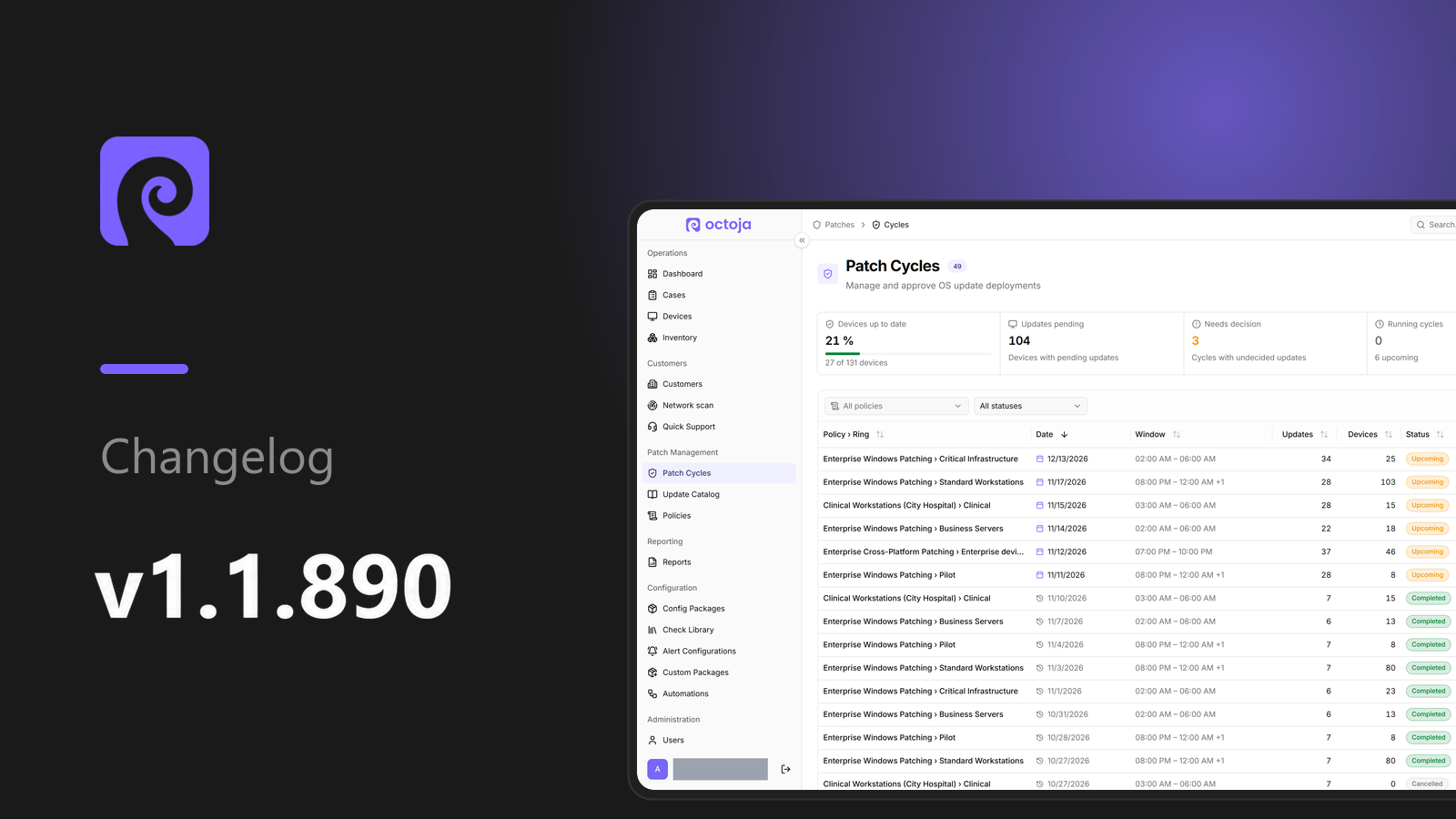
octoja v1.1.890 — Patch management, remote support and automation triggers
Highlights
Patch management, reworked — Decisions carry over from cycle to cycle, updates can be approved globally or installed right away, you confirm the known problems of an update once for all policies, and restarts treat the people at the device more gently. Read more
Remote support on several monitors and with the toolbox — Open every display of a device in its own window, or view all displays at once. The toolbox brings Task Manager and Services, and you arrange its tools side by side, stacked or as tabs.
Automations that react to change — New triggers run an automation when a device starts or stops matching, a new action uninstalls software, and runs can wait for offline devices.
PowerShell version of your choice — Custom checks and scripts run on Windows PowerShell 5.1 or PowerShell 7, as you decide.
11 new checks — TP-Link, Fujitsu iRMC, Huawei OceanStor and more.
More insight into your devices — Battery health, graphics cards and AppX and npm software now show up on your devices and in the inventory
New
Patch management
Patch decisions that persist — Approve or reject each update in an upcoming cycle, and your decision carries over to later cycles, while “Defer this cycle” skips an update for that cycle only. The cycle explains what decided each update, and cycles lock and start on their own at the maintenance window, so the separate finalize, reopen and force-promote steps are gone. Read more
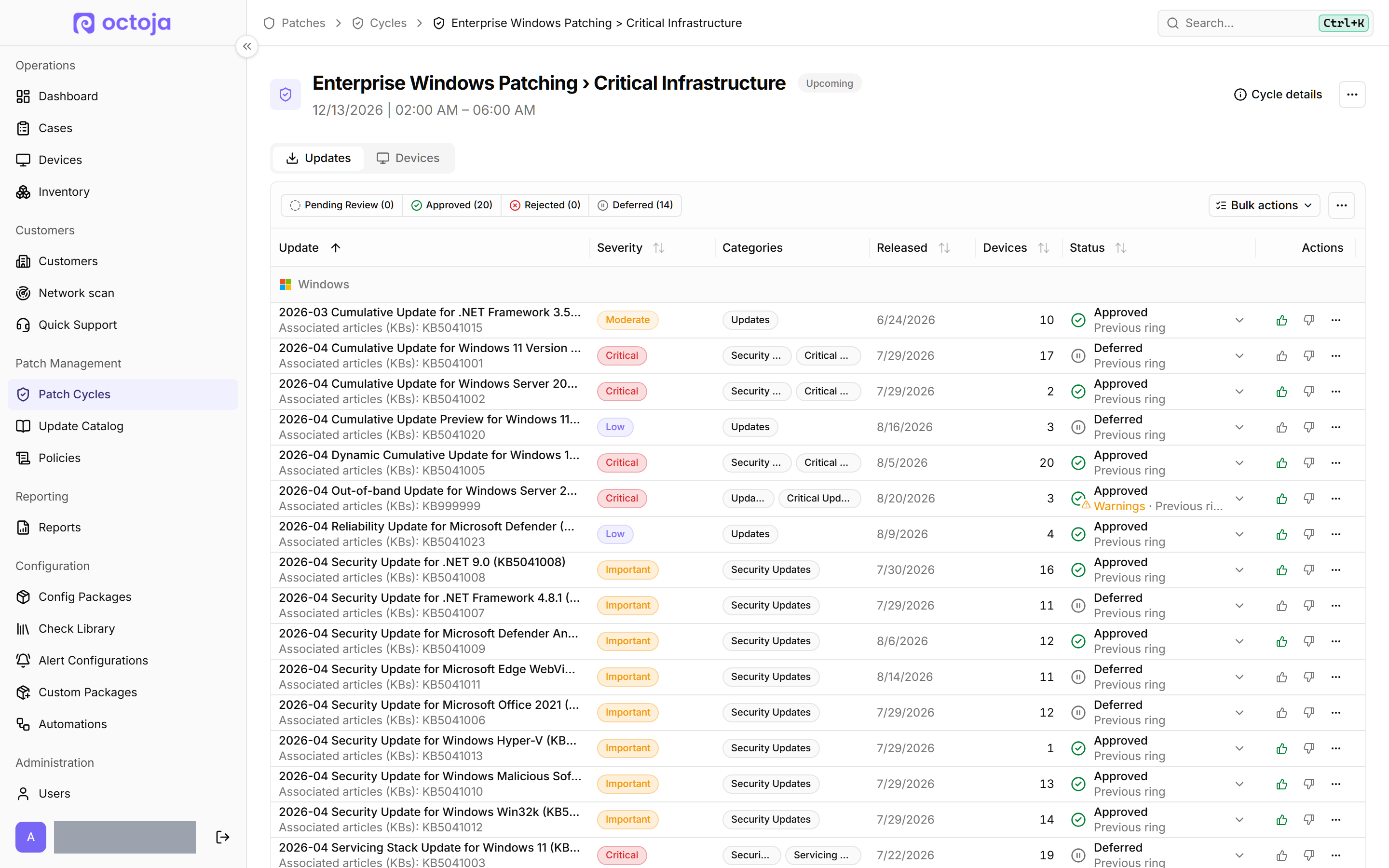
Install updates now — Select pending updates on a Windows or macOS device and start them with “Install now”, independent of any patch policy schedule. “Install all updates now” takes everything pending on the device, and the “Install updates” bulk action installs the pending updates you pick on all selected devices as soon as each one is online.
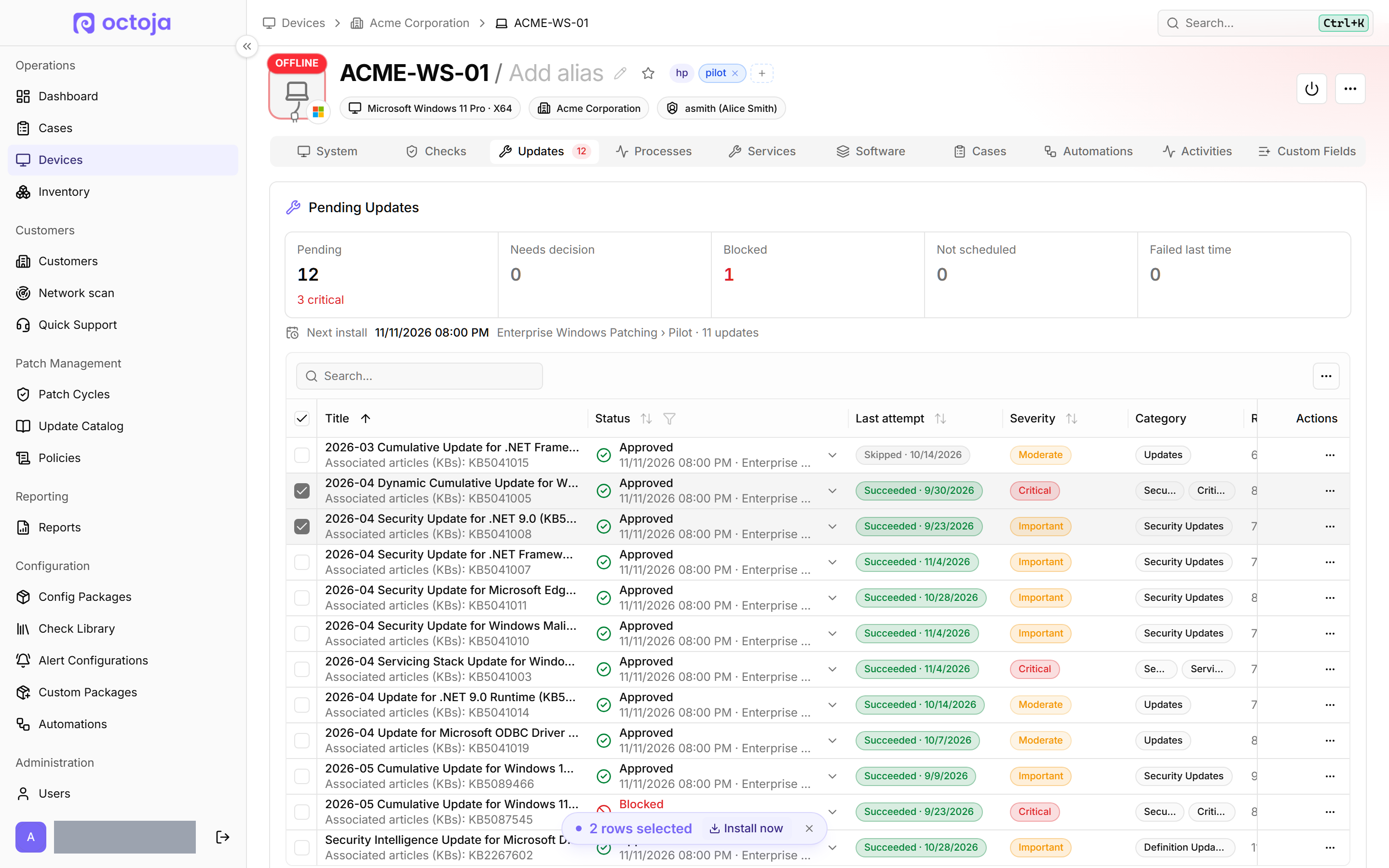
Global approvals — “Approve globally” approves an update once for every upcoming patch cycle unless a cycle or ring decides otherwise. All global approvals are listed under “Global approvals”. “Revoke global approval (all policies)” and “Block update globally” apply across all policies and rings; cycles that have already started keep their decision.
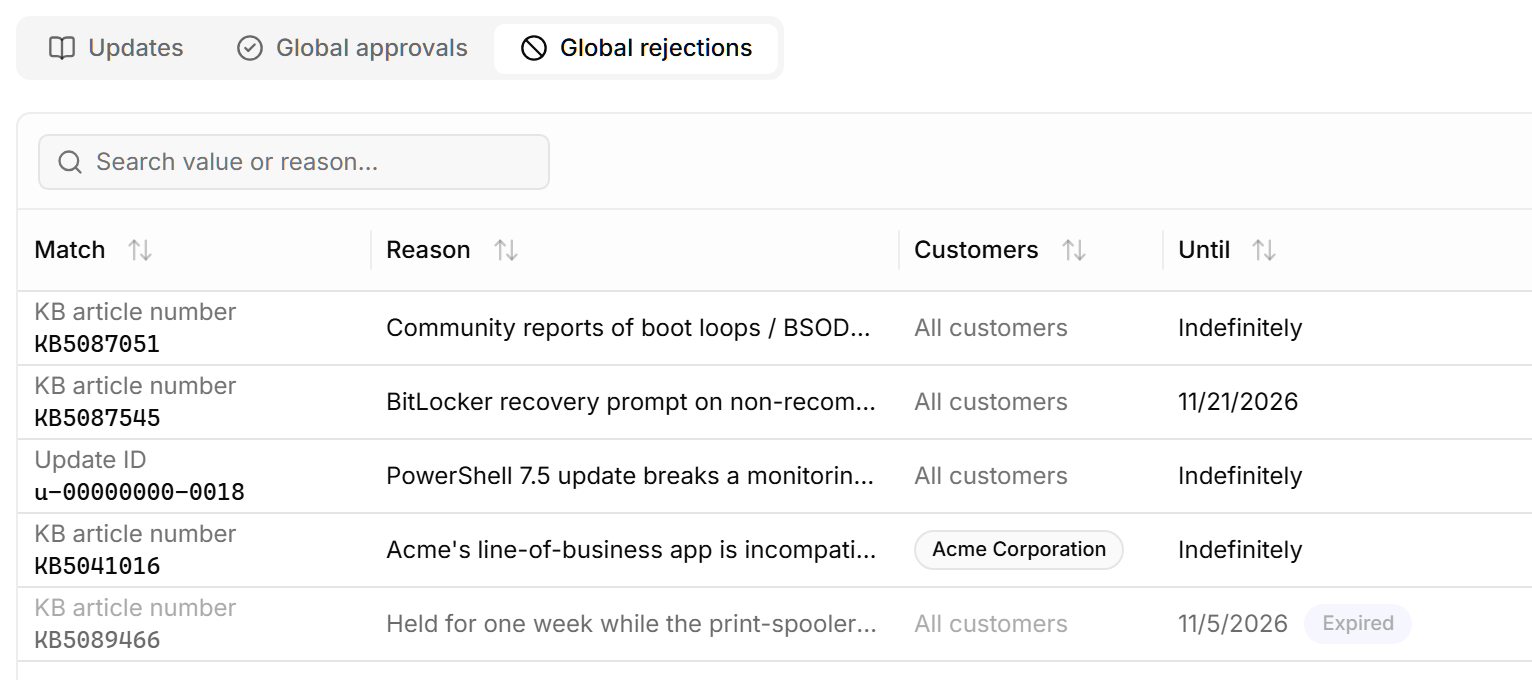
Global rejections — Global blocks can match a KB article, an update ID or a category, can be limited to selected customers and are listed under “Global rejections”. Policy exclusions can carry a reason and an end date.
Automatic approval with ring promotion — Patch policies can use both together: approval rules decide for the first ring, and later rings receive an update only once the previous ring meets your promotion criteria. A new “All updates” rule approves everything, optionally after a minimum age, while exclusions and blocks still apply.
Safeguards and overrides — Blocked updates stay visible with every blocker and warning. Users with the new “Override patch safeguards” permission can choose “Override safeguards” for a single update in a single cycle, which also approves it for that cycle, and undo it with “Reactivate safeguards”. The status shows who overrode which blocks and when.
Exclusions by title and flexible schedules — Exclusions can match “Title contains”, so preview updates are skipped even when they were approved. Ring schedules can be offset by a number of days from any first to fourth weekday of the month.
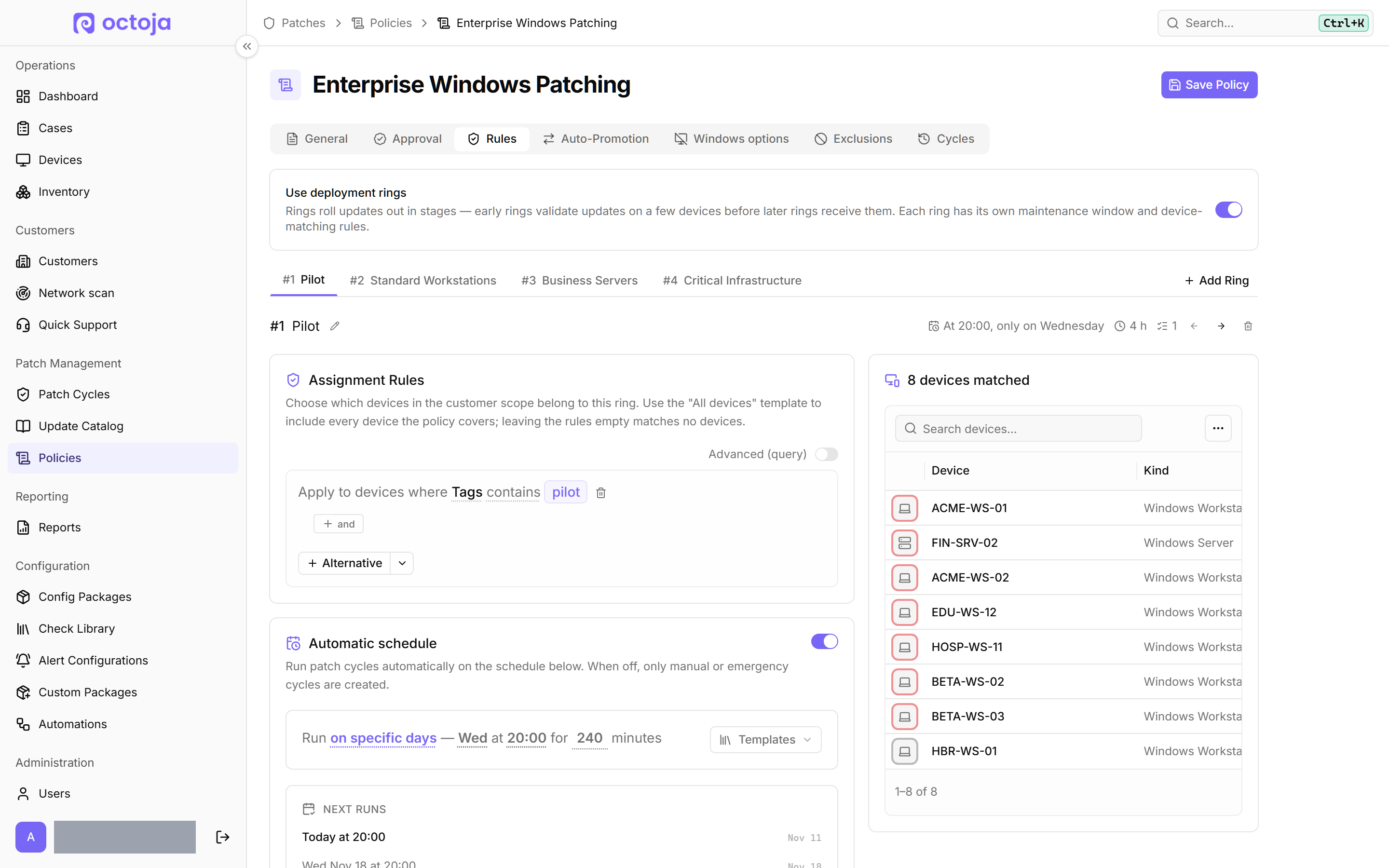
Patch policy editor — Every ring has its own tab with the matching devices next to its rules, rings can be moved earlier or later, exclusion rules line up in one grid with a label on every field, and the “Restart behavior” settings spell out what the user at the device will see.
Gentler restarts — Each ring has a “Time to respond (minutes)” setting for the restart prompt, and the “Wait for Restart now” option stops the device from restarting on its own once all postponements are used up. The prompt counts down to the next postponement while postponements remain, and the final warning says plainly that the device restarts and reminds the user to save their work.
Cancel run — A running patch cycle can be stopped with “Cancel run”, and devices that have not started installing are skipped. Emergency rollouts now ask you to choose between rolling out now or later.
Reasons for unfinished patch runs — Cycle results, the patch history of a device and the activity log explain why patching stopped, for example because the window ended, a restart was not allowed or a maintenance window held patches back.
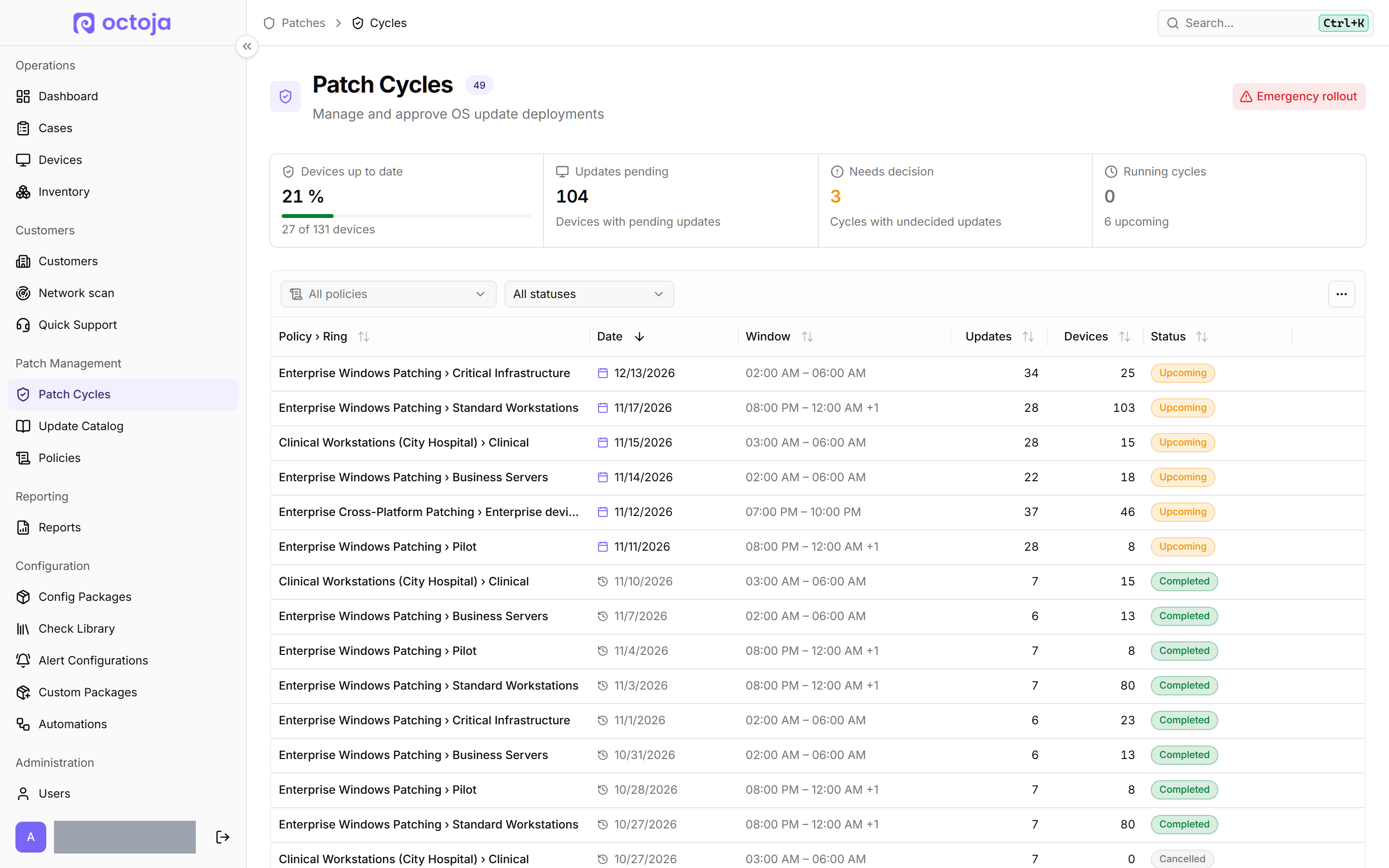
Clearer patch cycle pages — The cycle list opens with a summary, a “Needs decision” filter and the number of devices each cycle targets. A cycle shows decisions and results per update in one table and picks up newly found updates as soon as a device reports them. Once a cycle locks, its devices and settings stay fixed, and its history stays readable after the policy is deleted.
Device “Updates” tab — Pending updates show why they are waiting, for deferred updates also the rule or decision holding them back, which policy and ring will install them and how the “Last attempt” went. A new “Installed updates” card lists every recorded installation, and devices outside every policy are flagged with “No patch policy” in the device list, on the dashboard and on the tab.
Update Catalog — Each update shows the same title and all of its KB article IDs in the catalog, in cycles and in reports, and you can search by any of them. The catalog counts the devices where an update is pending, installed or failed, narrows to a selected customer, and blocks an update through a search picker instead of a typed update ID.
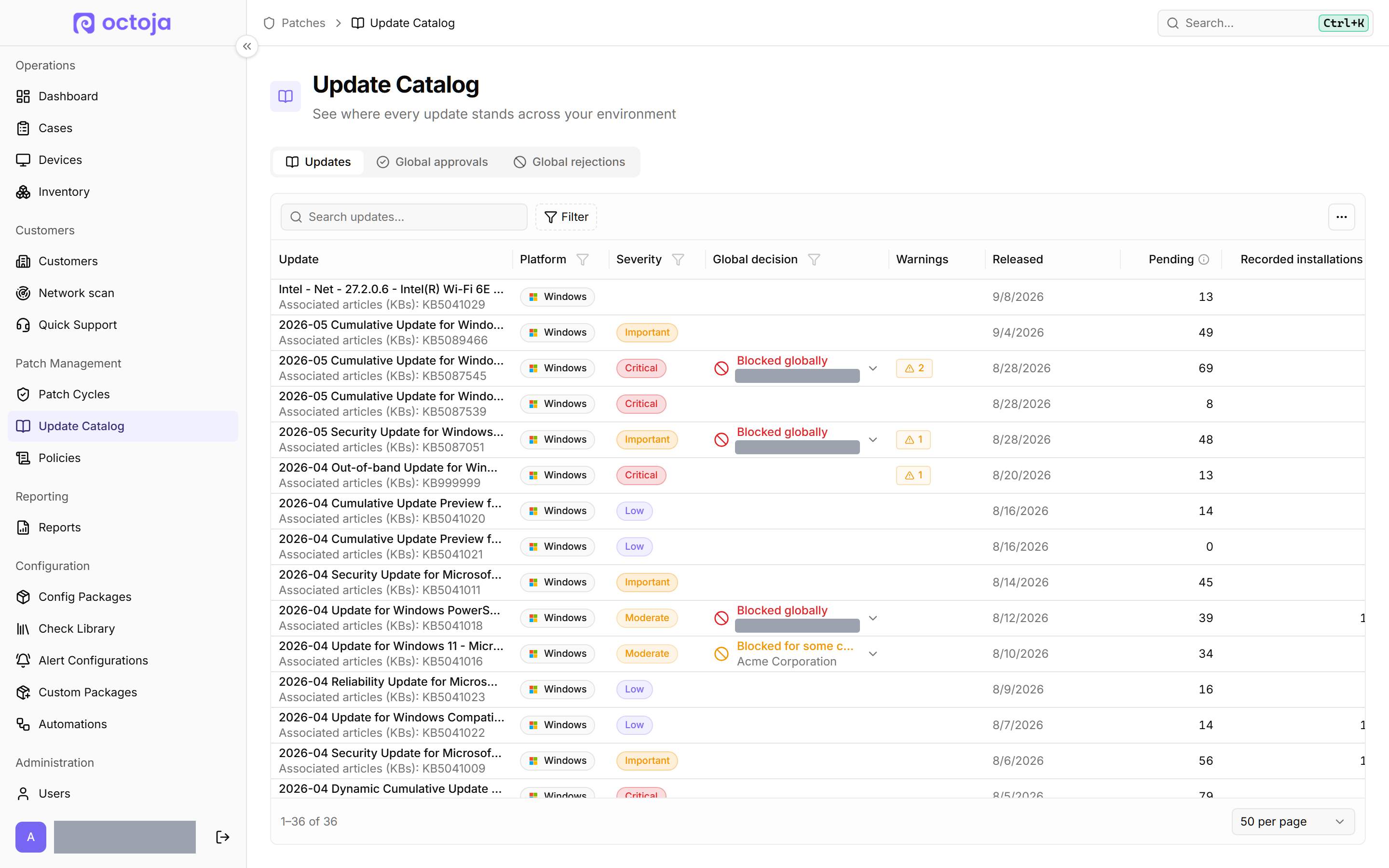
Override known problems permanently — On an update's page in the “Update Catalog”, you confirm its known problems with “Override known problems” once for all regular cycles of every policy and ring; the update still needs an approval, and global blocks and policy exclusions still apply. If the known problems change, octoja holds the update back until you confirm them with “Review and confirm again”. The new “Standing overrides” tab lists all overrides; you set and revoke them with the “Override patch safeguards” permission and access to all customers. Read more
Limit how long known problems hold an update — Under “Exclude updates with known problems”, you set a “Maximum hold” of 1 to 365 days after release in a patch policy, optionally limited with “Only for category (optional)”, for example to security updates. Once it has passed, octoja installs the approved update despite its known problems and marks them with “Maximum hold ended”; global blocks and exclusions still apply. The option is off by default, and existing policies behave as they did. Read more
Remote support
Remote desktop on several monitors — “Open in separate window” puts any display of a remote device into its own window, and the new “All displays” option shows every monitor in its physical arrangement. Separate windows require the updated agent on the device. Changing the monitor in a Windows session switches seamlessly, and the picture keeps running.
Log off and delete local users — The user list of a device has a new “Log off user” action that ends a local user's sessions on Windows, Linux and macOS without touching the account. “Delete user” removes a local account while keeping the profile files. The list shows the live account state after each action.
PNG/JPEG codec for “weaker” Windows machines — An experimental codec that sends only the parts of the screen that changed. “Auto” picks it on Windows devices without a hardware encoder and with fewer than four processors, and you can select it manually in the codec settings.
Windows maintenance desktop (Beta) — A beta feature that runs maintenance tools on a separate Windows desktop without interrupting the signed-in user. The feature is off by default and can be enabled under “Beta features”.
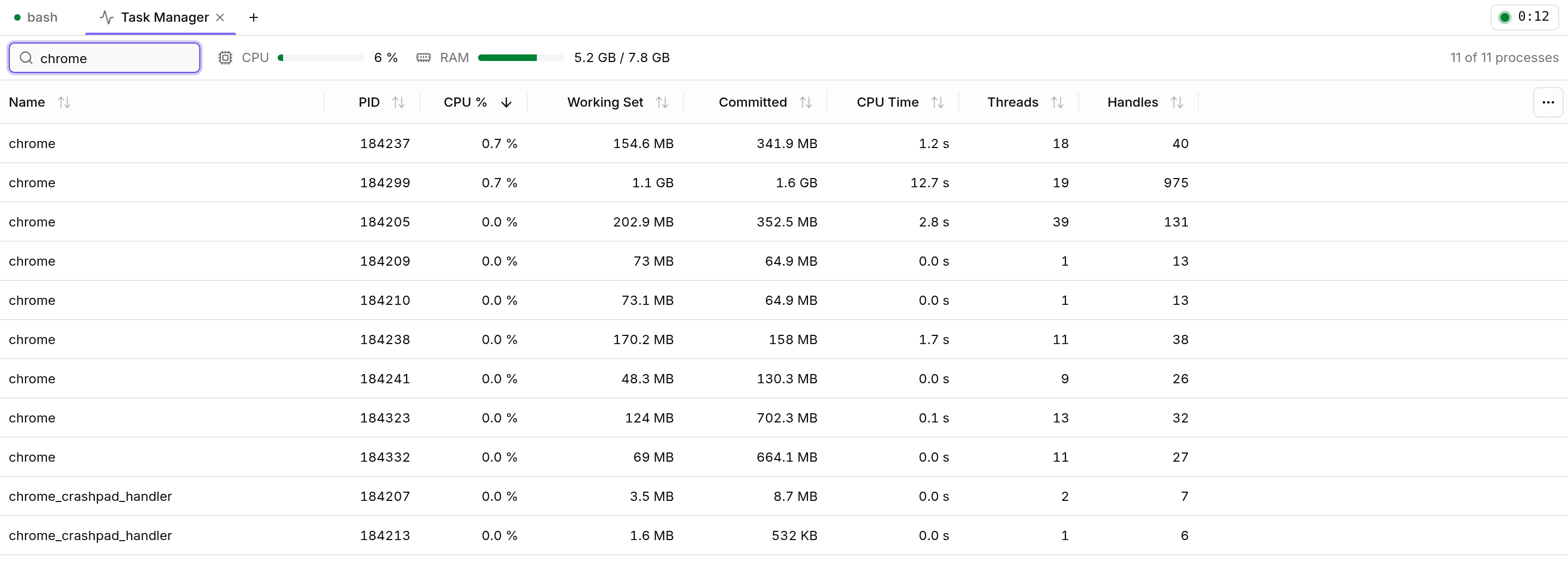
Task Manager and Services in the toolbox — The “Task Manager” section of the toolbox (Ctrl+Shift+P) shows CPU and memory usage and up to 100 processes that you search, sort and end after confirmation. On Windows, you manage all services in the “Services” section (Ctrl+Shift+S): start, stop, restart and set the start type. This needs the “Process Control” or “Service Control” device action respectively. Read more
Arrange the toolbox freely — In the toolbox you drag tabs side by side, stacked or into groups and resize them, while terminal sessions and remote desktop keep running. On the remote desktop tab, “Open terminal below desktop” and “Open File Explorer beside desktop” dock the tool with one click. Read more
Automations
“Starts matching” and “Stops matching” — Two new triggers run an automation once when a tag, a custom field, installed software or another change brings a device into or out of the target devices.
Uninstall software — A new action removes a Windows application by its exact name and can run across the devices of several customers.
Run a script without an automation — The “Run or schedule an action” dialog has a new “Run script” action: paste a script and run it on the selected devices now or later. Output and history are recorded like any other run.
Customer tags in scripts and conditions — Scripts read the tags of the assigned customer through the “Customer tags” variable (
${{ trigger.customerTags }}), and conditions check them like device tags, ignoring case. The tags at the start of the run count; when you rename a tag, octoja updates such conditions with it. Read more
Devices & dashboard
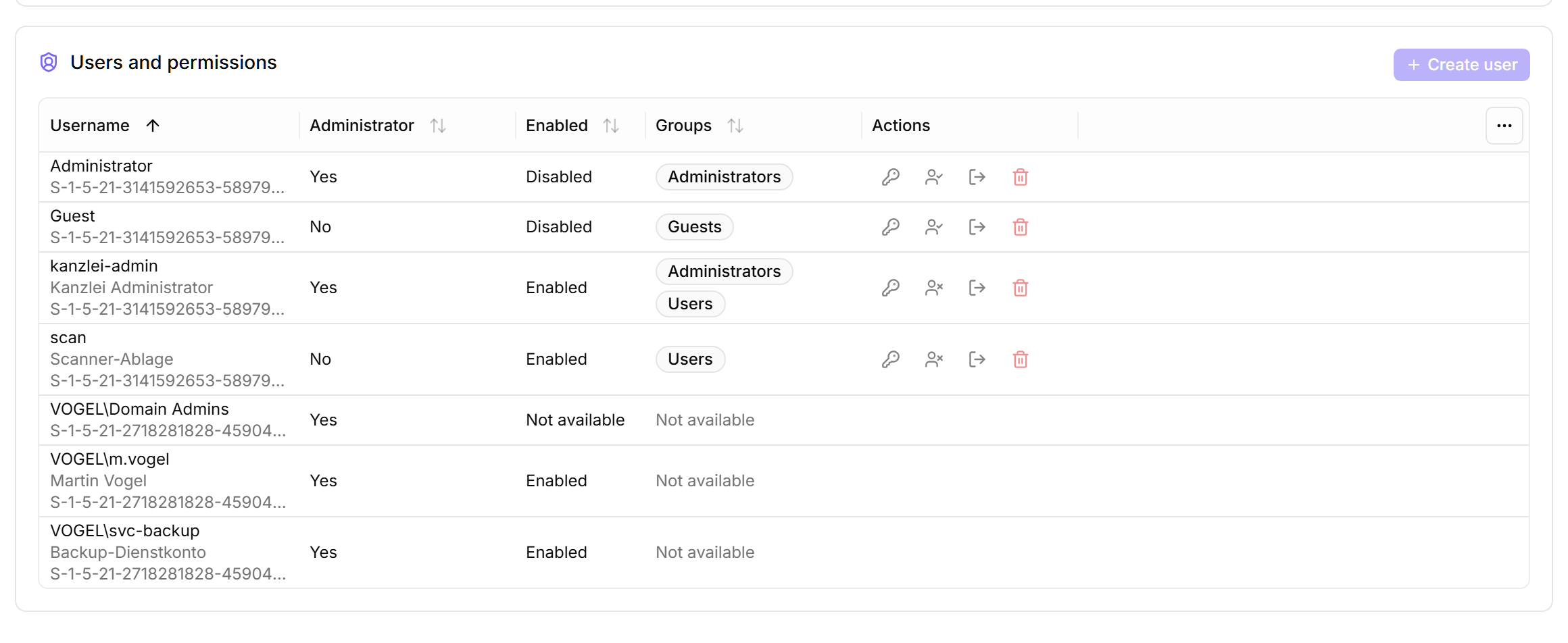
Users and permissions — The device details and the “User Audit” report now show which local and domain accounts have administrator rights on Windows devices, including rights granted through nested groups. Requires the updated agent on the device.
Rename tag — Rename a device or customer tag from the tag rules page. octoja updates it on every device or customer and in all tag rules, configuration packages, automations, access groups, reports and patch policies that use it.
Dashboard filter by alert configuration — Pick one or more “Alert configurations” on the dashboard or the TV view to show only the checks that use them. The selection is saved with dashboard views.
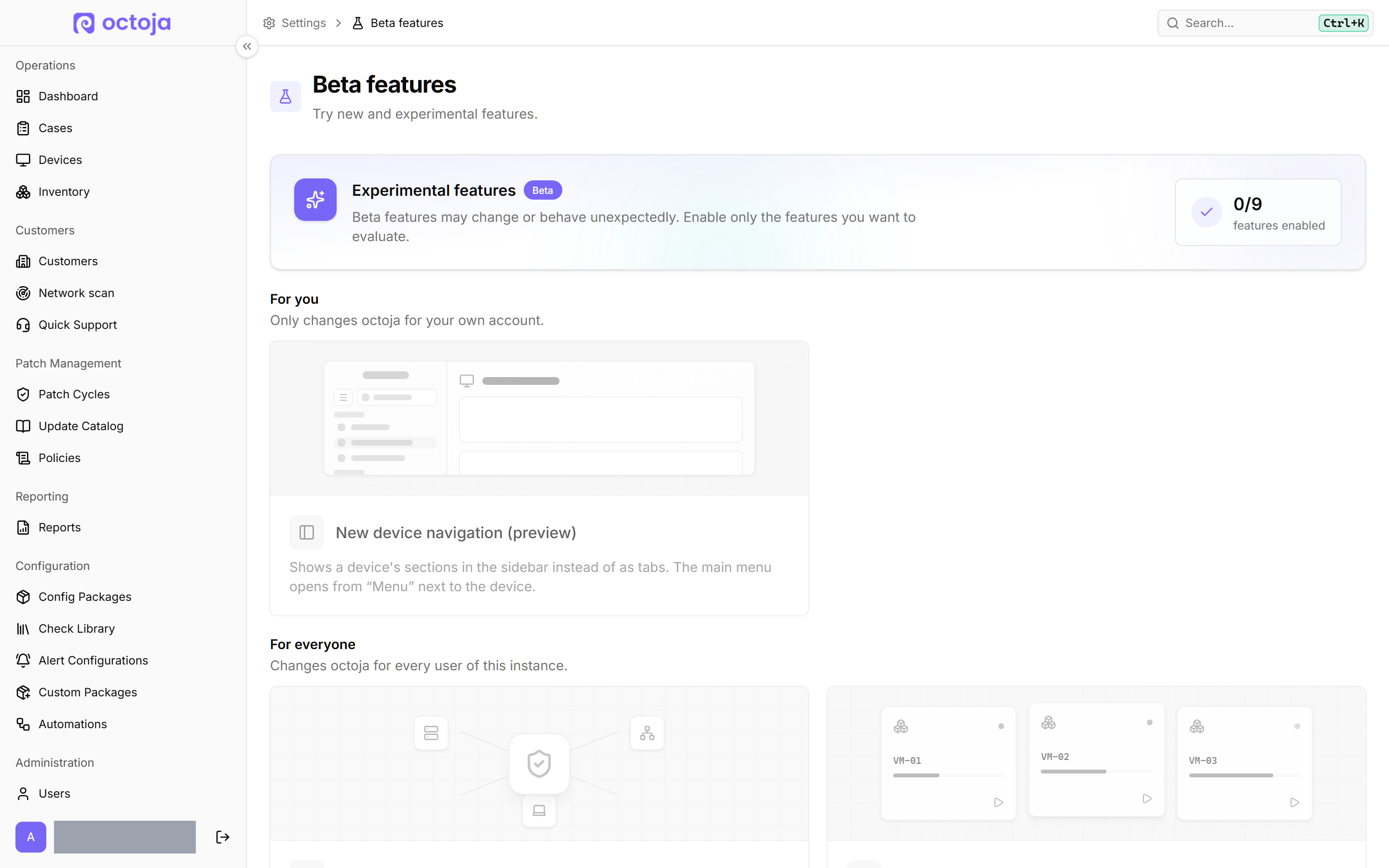
New device navigation (preview) — Shows the sections of a device grouped in the sidebar instead of a tab row; the sidebar starts with a “Main menu” row that opens the main menu. Every user can opt in for their own account under “Beta features” in the new “For you” section, while “For everyone” remains for administrators.
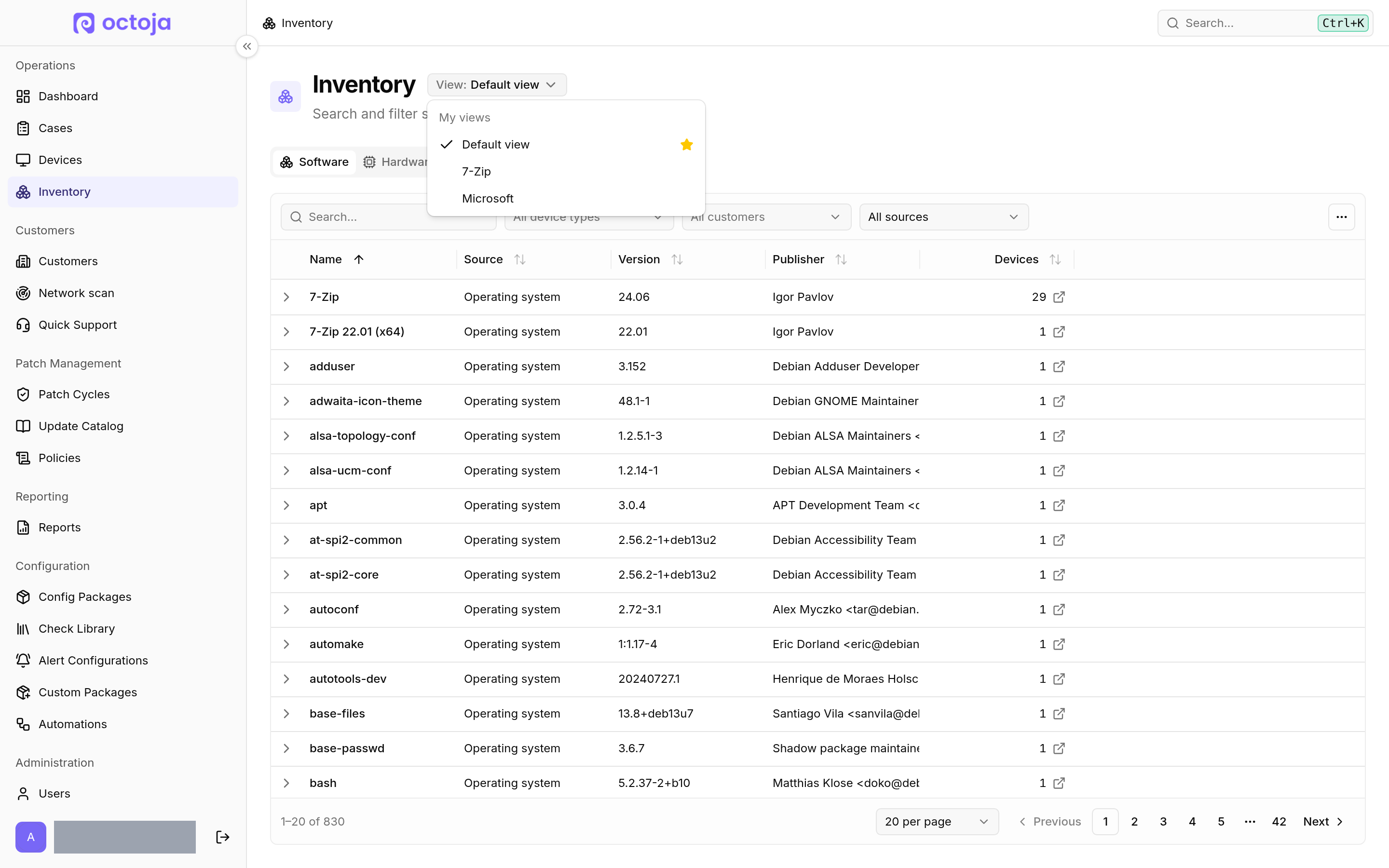
Saved views in the inventory — On the “Software”, “Hardware”, “Services” and “Tags” tabs under “Inventory”, you save filters, sorting, columns and page size as a named view, set a default view and share views by link. Each tab has its own views, and the picker sits next to the heading as in the device list. Read more
Cases
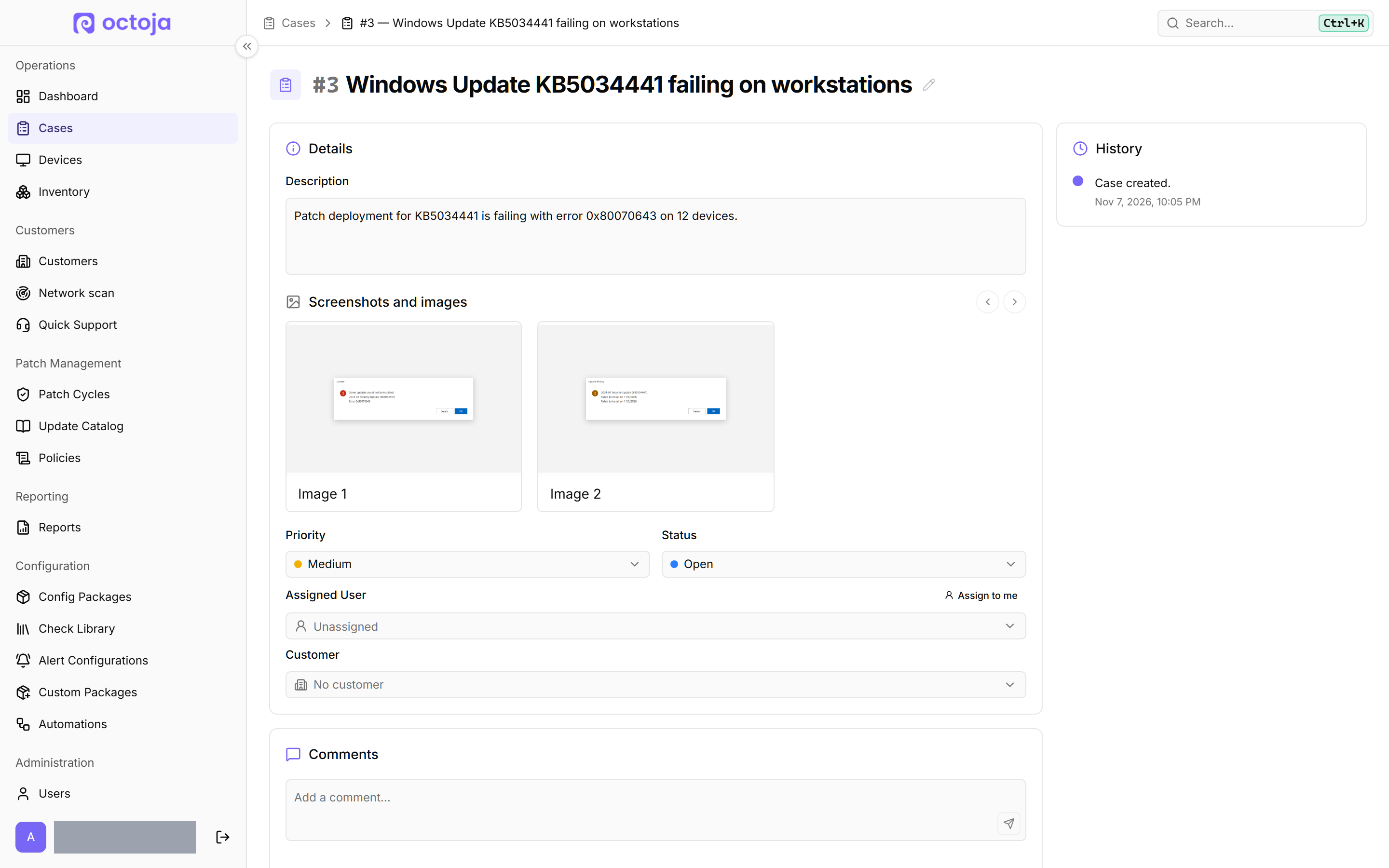
Screenshots in cases — End users can attach a screen area with “Take screenshot”, or an image with “Upload image”, when they create a case from the agent window. Technicians find the attachments in the case under “Screenshots and images”, with an enlarged view to page through.
Settings & access
Agent branding per customer — Under “Branding scope” you can override the agent's product name, colours, logo and icon for a single customer. Empty fields keep the “Instance defaults”.
License page — A new “License” page in the settings shows your license status, your distributor contact and this month's device usage per customer compared with the previous month. During a trial, the remaining days are shown in the app bar.
Outbound IP address — Administrators find the current source IP of their instance under “Outbound IP address”, to allow it in firewalls in front of integrations, webhooks or mail servers. The same address is available as plain text at /api/ip for automatic import.
Support session notes and TANSS export (Beta) — Administrators can turn on “Require notes for support sessions”. With the “TANSS time sync” beta feature enabled, completed support sessions of matched technicians are exported to TANSS, even when the customer is not matched to a TANSS company or no TANSS device is linked, for example with Quick Support.
Connect Claude with one click — Under “Settings → MCP clients → Add MCP client”, “Add to Claude” opens Claude with the octoja server already filled in; you review the details and confirm them in Claude. Read more
Improved
Accurate results after a restart — Updates that wait for a restart are shown as “Awaiting Restart” and receive their real outcome once the device has restarted. Patch runs end with the maintenance window.
Up-to-date status for Windows and macOS — Devices with no pending updates appear as up to date on the dashboard and in the device list. The pending-update count appears for Windows and macOS devices.
Complete results and search in the patch cycle — The “Updates” tab of a patch cycle also counts devices on which an approved update was already installed or did not apply, and shows “Skipped”, “Already Installed” and “Not Applicable” by default; in a saved view of the table you show these columns yourself. With “Search updates…” you find updates by title, update ID or KB number, and on the “Devices” tab each device lists all its update results.
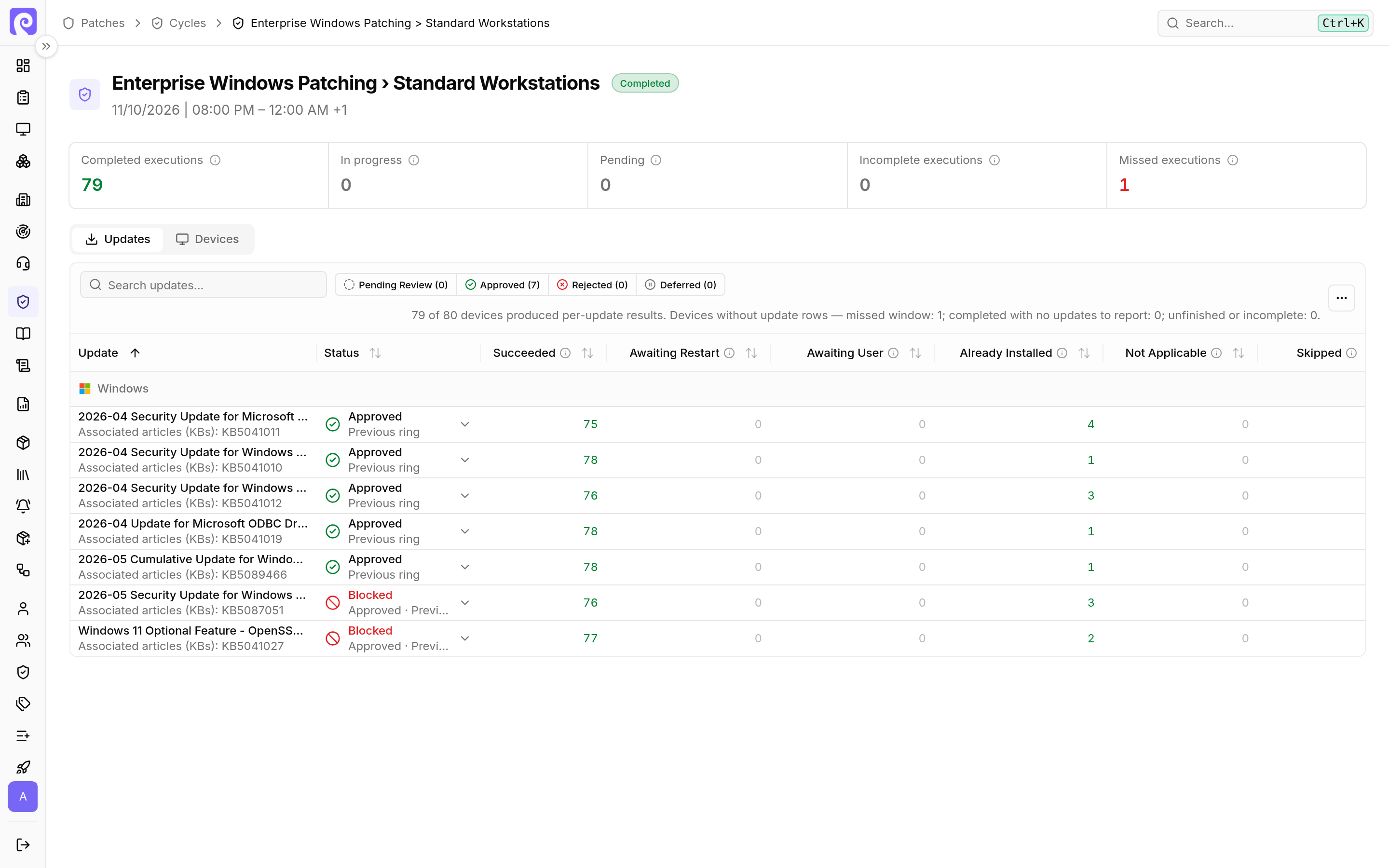
Defender updates stay with Defender — Patch management leaves the Defender updates KB2267602 (security intelligence) and KB4052623 (antimalware platform) to Defender, which installs them itself: they appear neither in new patch cycles and the “Update Catalog” nor in the “System Updates” check, and they do not count toward compliance. For these two updates, octoja removes global approvals and decisions in draft cycles, while completed cycles keep them as history. The “Update Catalog” always shows all other definition updates, such as the update of the Windows Security app.
Reconnect and slow connections — After a brief connection drop the remote desktop shows “Reconnecting” and reopens the session on its own. On slow links down to about 256 kbit/s, octoja adapts the frame rate and keeps the session connected.
Notice for devices without a monitor — If a Windows device has no monitor connected, the viewer explains why the screen may stay black and how to fix it.
Terminal, file explorer and window titles — The remote terminal has a toolbar to start other shells, including “Shell as user”, and a search with match navigation and highlighting. File explorer: A new “Copy file path” action for files, folders and drives, and an “Up” button in empty folders. Remote support window titles now include the customer site after the customer name.
Remote desktop notice for Macs without a hardware encoder — If a Mac has no hardware video encoder, usually a VM without GPU acceleration, remote desktop with the current agent reports that it is not supported on this Mac; if the screen capture component is missing, the message says so separately. The message is in English.
Wait for offline devices — With the “Wait for offline devices” switch, every run of an automation waits for the device to come online instead of skipping it, for a “Wait duration in days” of 1 to 100. In the “Run or schedule an action” dialog, “If the device is offline” offers “Run when it comes online”.
Choose the PowerShell version — Custom checks, script steps in automations and one-off script runs let you pick Windows PowerShell 5.1 or PowerShell 7 under “PowerShell version”. PowerShell 7 is installed automatically on devices that lack it, and existing scripts keep their current behaviour.
Cancel a running step — Cancelling an automation run stops the step in progress where the device supports it and shows it as “Cancelled”. Changes already made are not reverted.
Images and links in user notifications — Notifications and prompts for the user can show images from a web address through “Insert image” and can link to phone numbers and email addresses. Links behave the same in Markdown custom fields. Requires the updated agent on the device.
BitLocker for additional drives — The BitLocker action can encrypt selected data drives in addition to, or instead of, the system drive.
Package schedules, rule conditions and action search — Configuration packages show the effective schedule of each linked automation with a “Change package schedule” action, and the assigned automations of a device list the schedule that really applies. The rule builder has a “Customer Name” field and a “Has site assignment” field, and conditions on custom fields offer inputs that fit the field type, such as yes or no, the configured options, dates and numbers. The action list in the automation editor is sorted alphabetically and has a search field, and field labels are linked to their inputs for keyboard and screen-reader use.
Custom fields in custom packages — Package parameters and install arguments can use device and customer custom fields, so a value such as a licence key per customer is filled in for each device. In the configuration package list, the former “Deployments” column is called “Software entries”.
New automations start disabled — A newly created automation stays disabled until you enable it, so you can finish setting it up before it runs on any device.
Run history kept for 30 days — Finished runs are removed after 30 days, and runs in which every step was skipped or the device was offline after 14 days. During the update, finished runs older than 7 days are removed once. Automation details open immediately while the history loads.
Clearer options for offline devices in automations — In automation steps, the option to abort under “If device is offline” and “On failure” is consistently called “Stop the automation”, and skipping an offline device is called “Skip this step and continue”. When you choose to skip, the step editor explains that later steps still run and that steps depending on the result need a condition on its output.
Built-in Windows actions with Windows PowerShell 5.1 — The automation actions “Enable BitLocker”, “Deploy browser extensions”, “Create user account”, “Roll out Bitdefender agent” and “Ensure Lywand agent” always run in Windows PowerShell 5.1 and so behave the same on every Windows device. “Enable BitLocker” keeps recovery passwords out of the step output; you find them on the device page after the next inventory.
Bulk actions on the dashboard — Devices can be selected on the dashboard and handled with the same bulk actions as in the device list, so a filter by check result turns directly into an action.
Check details on the dashboard — Hover a check indicator to see its result and rerun it, acknowledge a failure, end an acknowledgement or disable the check, without opening the device. When exactly one check is selected, its short result text is shown for every device and included in the CSV export.
Filters — The dashboard and the device list restore your last filters, sorting and page when you come back, for example after opening a device. Devices, cases and updates use the same searchable filter menu with removable chips. The device list gains a “Patch policy” filter and a “Without site” option in the site filter.
Sort by any column — All data columns of the device list sort in both directions, the list is sorted by device name by default, and names sort independently of upper and lower case and umlauts. The dashboard device table has a sortable “Health” column.
Power actions in the device menu — “Restart device”, “Schedule restart” and “Shut down device” are available in the header menu of online devices.
Battery health, graphics cards, AppX and npm in the inventory — “Battery health” and “Battery charge” are available as optional columns in the device list, in the hardware inventory and in hardware inventory reports. Devices report their graphics cards and dedicated graphics memory under “Graphics cards” in the device details and in the hardware inventory, including the CSV export. Devices report AppX and MSIX apps and npm packages in addition to installed system software, and a new “Source” filter separates them.
Find devices by customer name — The Ctrl+K search and the device pickers also return the devices of a customer when you type the customer's name.
Customers — On a customer's page, clicking a site row opens the device list filtered to that customer and site. The device list has an optional “Customer reference no.” column and the customer list offers optional count columns per network device type; both are included in the CSV exports.
Device list, device log and rules — The “IP Address” column is shown by default for new column layouts, long device log entries can be expanded, and the membership values in assignment rules formerly shown as “Azure AD” and “Hybrid” are labelled “Microsoft Entra” and “Microsoft Entra (Hybrid)”, as in the device list.
Faster dashboard on large fleets — The customer tree and the device search on the dashboard respond faster with thousands of devices.
Display names in the device list — In the “Last User” column, the card view and the CSV export, the device list shows the display name of the last signed-in user next to their user name, when the device reports it.
TPM version in the inventory — On Windows, the “Motherboard” tile shows the TPM version of the device, for example “TPM: 2.0”; the detail dialog and the “Inventory History” list it as well. The value appears after the next inventory with the current agent.
Complete CSV export of virtual machines — The CSV export of an ESXi host's VMs on the “Device Info” tab contains all guest details, whether or not rows are expanded: configuration, state, uptime, disks and network, the vCPU count separate from CPU usage, and configured next to current memory. The same applies to Hyper-V and Proxmox guests with the “Hyper-V management” and “Proxmox VE host management” beta features.
SNMP v1 — SNMP checks, network devices and SNMP-based custom checks offer v1 under “SNMP version”, next to v2c and v3, for devices that only answer SNMP v1.
Check Library and custom check editor — “Hide check for me” removes a check from your own Check Library and from the “Add Check” dialogs, and “Show hidden checks” brings hidden checks back into view. Library cards behave the same for mouse and keyboard, and the editor header shows only the details you need for editing.
Find checks by description and source — When you add a check to a device or configuration package, the search also finds checks by their description. Under “Filter” you narrow the list by “Source”, for example “Custom checks only”, and by “Platforms”.
Recovery notifications — SMS and WhatsApp notification groups have a new “Send recovery notification” option, off by default, that sends a message when an alarm clears. Emails, Teams messages, push notifications and webhooks now say “Alert resolved” instead of “Check recovered” or “Recovered”, and ticket comments state that the configured alert condition is no longer met, because a check can leave an alert rule while it is still in “Warning”.
Offline alerts during mass disconnects — When many agents from at least three different internet connections disconnect within 15 seconds, for example during a network outage, octoja holds back the offline alerts of these devices for five minutes; devices still offline after that alert as usual. If only one site goes down, its devices alert after the normal waiting time. This waiting time after a disconnect is 60 seconds (previously 30 seconds), so that an agent can reconnect first.
Clearer alert calls — Phone calls for alerts read the alert out in short sentences with pauses, name the customer, site, device and check, and repeat the message once. Voice and language follow the language in the recipient's octoja profile; if none is saved, the call is in English.
Report schedules — Each recipient group of a report schedule has its own period: “Last 30 days”, “Current month”, “Last month” or “All time”. Previews and new groups start with “Last 30 days”. “Add customers” adds any number of customers to a report schedule in one step, each with its contact email, and recipients are managed in a searchable table.
Availability Report — The built-in SLA report is renamed “Availability Report” and is based only on the online and offline history of the devices. Like other reports with SLA incidents, it loads faster, even for large fleets and long periods.
Software, check results and patch status in reports — The software widget offers “Application selection” with “Top 50” or “All”, built-in reports can be narrowed with the device filter, and the “Check Results (Table)” widget shows the customer for every device. The current patch status report lists “Installed, awaiting restart” and “Prepared, waiting for the user to install” as separate groups, so you can see where only a restart or the user is still needed.
Complete Patch Performance Evidence — Reports with patch activity, such as the “Patch Performance Evidence”, include all matching entries by default, also in the PDF and beyond 1,000 rows; a row limit applies only when you turn off “Include all matching entries (no row limit)”. With the “Installation result” filter you limit a report to, for example, successful or failed installations. The built-in “Patch Performance Evidence” shows successful installations; your own templates keep their filters.
TANSS — A new “TANSS device class mapping” sets whether each octoja device type is created as a server, PC or periphery, and NAS, ESXi and vCenter devices now default to server. Importing customers from TANSS also fills the reference and the address.
woasi — Sites are sent to woasi, including new and renamed ones, and tickets carry the result text of the check. Webhook alert payloads additionally include the customer site ID and name.
Bitdefender, NovaStor and DocBee — Bitdefender: The company picker also lists GravityZone companies that are organised in company folders. NovaStor: NovaStor DataCenter backups are matched to devices by the unique ID of the client, so renamed clients stay linked too. DocBee: The dialog always shows that the base URL must end with /restApi, recovery deliveries show the DocBee ticket number, and a missing permission for external messages is explained.
Integrations stay active on delivery errors — Ticketing systems, email, Microsoft Teams, woasi and webhooks stay active even when deliveries fail repeatedly: on temporary errors octoja tries to deliver each alert up to seven times, and on the next hourly run it sends woasi and webhooks all inventory changes since the last successful transfer. An integration that is already disabled stays disabled until you turn it on; octoja does not deliver alerts skipped during that time later. Read more
Group Policy rollout by startup script — The deployment page recommends “Group Policy (script, preferred)” with a ready-to-use script and “Download script (.ps1)”. The MSI method stays available as “Group Policy (MSI, legacy)”.
Windows quick install — The quick-install script checks the enrollment token up front and reports an invalid, expired or revoked token before it installs anything. With -Force it replaces an existing agent installation in one step while the device keeps its identity.
Self-repairing agent and housekeeping — The agent detects missing or modified program files during its regular update check, including those of its startup component, and restores them; each repair appears as a warning in the “Logs” of the device. The agent deletes its own log files after 14 days, updates of its startup component are now recorded in the device log, and agent logs of up to 500 MB (previously 50 MB) can be sent to support from octoja.
Permission for Lywand data — A new “View Lywand Information” permission controls who sees Lywand scores and vulnerabilities on devices, customers and in reports. Administrator groups receive it automatically, so grant it to every other group that should keep access.
Limit beta features to groups — A new “Use beta features” permission controls who sees enabled beta features. Existing groups keep it.
Clearly scoped access — The alert configurations page is tied to the permission to manage alert configurations. Users limited to certain customers assign every enrollment token and Quick Support link to one of their customers when they create it. For devices with cases turned off, octoja accepts no new cases.
More precise MCP tools — When a tool argument has the wrong shape, the error names the field and the expected type, and update tools validate every field before they save anything. The tool that prepares a device file archive is marked as a write action, so MCP clients treat it like any other write action.
Network scan (Beta) — Scanner, scan interval and auto-add settings are managed only on the “Network scan” page
Fixed
Age-based approval and macOS updates — Updates that report no release date, including all macOS updates, start their waiting period as soon as octoja first sees them. macOS updates that need a restart are prepared and handed to the user to complete in Software Update. Until the user completes them, octoja shows them as “Awaiting User”.
Windows Update page on patch-managed devices — On Windows devices under a patch policy, the “Windows Update” page opens in Windows Settings; octoja holds updates back through the Windows policy alone. Checking for updates and pausing updates are always blocked there, even when “Disable the Windows Update interface” is off; this option additionally hides the page and the notifications. This applies with the current agent.
Withdraw decisions in the patch cycle — When you withdraw your own approval or rejection in a patch cycle with “Withdraw manual approval” or “Withdraw manual rejection”, the decision last made in an earlier cycle of the same ring applies; if there is none, the patch policy applies. The decision source then names who withdrew the manual decision and when.
Remote desktop sessions on Windows — Remote desktop sessions on Windows are more resilient to desktop switches, for example through UAC prompts, and to monitor changes. If the monitor you are viewing disappears, the session continues on the primary display, and the monitor selection stays current.
Remote desktop on Windows: picture, input and wallpaper — The picture rides out short network stalls, “Type Clipboard” waits until a briefly busy target application accepts input again, and scaled displays appear at their logical size in the display layout. Restoring the desktop background after a session is more resilient. Print Screen (sent with “Send Print Screen” or the physical key) and Pause reach the remote device, so you can use applications that react to Print Screen.
Paste into full-screen RDP and uploads after sign-in — “Paste” in remote desktop also pastes the text into a full-screen RDP session that you opened on the remote Windows device. When you upload files by drag and drop after signing in at the Windows sign-in screen, they land in the Downloads folder of the signed-in user. Both apply with the current agent.
Agent installation by Group Policy and on Windows Server 2016 — If the agent service starts unusually slowly at boot, for example on domain controllers, an installation rolled out by Group Policy stays in place, and the rollout instructions cover domain controllers too. The agent MSI also installs on servers that only have .NET Framework 4.6.2. The quick install is more resilient on devices with PostgreSQL.
macOS agent — The agent window starts more resiliently and leaves the keyboard focus with you. Privacy requests appear in “Privacy & Security” under a single octoja Agent entry that stays in place across agent updates.
Reboot detection — On-boot automations and once-per-boot deployments respond only to real restarts of the device. Time corrections and agent restarts do not trigger them.
Service actions and restart steps — If a service takes several minutes to start, stop or restart, octoja waits up to five minutes, including in automations. If a Windows device already has a scheduled restart, a restart step replaces it and restarts the device; if a device did not restart, the step reports exactly that.
“Enable BitLocker” and “Deploy browser extensions” — “Enable BitLocker” turns on protection without a restart, also on system drives that Windows has already encrypted without protectors, for example through Windows 11 device encryption. Additional drives unlock automatically at Windows startup, which requires an encrypted system drive, and on thin-provisioned virtual disks the step encrypts only the used space. “Deploy browser extensions” also enters several extensions individually into the policies of Chrome, Edge and Firefox. Read more
Rule-based packages and multi-select custom fields in rules — A newly installed device gets its rule-based configuration packages once its first inventory has arrived, and software deployments are withdrawn promptly when a device no longer matches the rule. Rule conditions on a multi-select custom field compare each selected value, and existing rule results are recalculated. Built-in rule templates in which one of several values must match are inserted as a single condition.
TOPdesk, IT Glue and Hudu — TOPdesk: The device sync finds assets that already exist in TOPdesk, updates them and links them to the right branch. IT Glue: Each device keeps its own configuration, even with placeholder serial numbers from the firmware. Hudu: The sync updates assets in their existing layout, even if it differs from the layout set for their device type.
Odoo 19 and woasi — Odoo 19: A bug that caused Odoo 19 to ignore the filter and page size of customer lookups is fixed. woasi: The integration page describes that octoja sends changes hourly from the moment of connecting.
Check results and tags — Check result values keep their line breaks, and you can assign existing tags without the permission to create tags.
“Trigger Inventory” and permissions — On the device page, “Trigger Inventory” is active only when you have the “Run Maintenance” action for the device; without it, the button stays visible but disabled.
CSV exports and translations — CSV exports: Values that start with formula characters are written as plain text so spreadsheet apps do not run them as formulas, and customer names containing line breaks stay on one row. Translations: Corrected terminology and filled in missing translations in French, Spanish and Italian.
QuickSupport and network scan (Beta) — The QuickSupport consent prompt names the technician when a remote desktop session is opened and uses your brand icon through the new “QuickSupport icon” setting. Network scans use a known device's own SNMP credentials first.
Checks
Check updates are rolled out separately from the octoja release.
TP-Link Switch, TP-Link EAP and TP-Link Gateway — Three new SNMP checks for TP-Link JetStream and Omada devices: processor, memory and PoE budget of switches, connected clients of access points and the interfaces of gateways.
Fujitsu iRMC status — New check for the hardware health of Fujitsu PRIMERGY servers through iRMC: processors, memory, temperatures, fans, power supplies, storage and the system event log.
Windows Failover Cluster — New read-only check for cluster hosts that monitors nodes, roles, resources, the witness and Cluster Shared Volume usage.
Huawei OceanStor Dorado V6 — New SNMP check for hardware health, storage capacity, processor and memory usage, temperatures, selected ports and LUN latency.
Adaptec RAID (SNMP) — New check for Adaptec controllers, arrays, logical disks, SMART and batteries. RAID Status can read Broadcom and MegaRAID controller health through the new “StorCLI executable path” setting.
PHP vulnerabilities and Node.js vulnerabilities — Two new checks that discover PHP installations and Node.js runtimes on Windows, Linux and macOS and flag versions affected by specific recent vulnerabilities (two PHP CVEs and Node2Shell).
Apple Time Machine — New check for Macs that monitors the age of the latest completed Time Machine backup; by default it warns after 24 hours and reports critical after 48 hours. Local snapshots do not count, and a backup drive that is currently not connected does not raise an alert on its own. Read more
HPE MSA — New check for HPE MSA storage systems through their HTTPS API: controllers, enclosures, power supplies, fans, disks, RAID groups including rebuilds, pools, sensors and controller redundancy. It runs on an agent on Windows, Linux or macOS and needs only an MSA user with read access; you pin a self-signed certificate with the “Certificate SHA-256 fingerprint”. Read more
System Updates — The check uses the same Windows Update search as the inventory and the patch scan, so pending-update counts match, and skips update services such as the Microsoft Store that offer no Windows updates. All update sources share the deadline of the new “Windows Update search timeout (seconds)” setting, 900 seconds by default; the check reports sources still open after that as not searched. Checks with a saved 300 seconds keep that value, so raise it if needed.
Service Status — A new “Start stopped services” setting tries to start each stopped monitored service once per run. A recovered service is reported as a warning, a failed start stays critical.
Secure Boot Certificates — The check reports devices without enrolled Secure Boot keys as “Secure Boot disabled”, and the new option “Missing certificates only as warning when Secure Boot is disabled” keeps devices with intentionally disabled Secure Boot from staying critical.
HP iLO — Memory results list each module with slot, capacity and status, and query or connection problems are reported separately from hardware faults. Result details are translated in French, Dutch, Spanish and Italian.
MailStore (Server & SPE) — The check shows license usage and, with “Monitor support and license expiry”, warns before MailStore Server support or a time-limited license ends. It waits for queries MailStore is still processing and copes with very large numbers of archiving runs.
Printer (SNMP) — A new “Ignored supplies” setting excludes single consumables such as a waste toner box. Low-toner alerts follow your configured thresholds and take into account whether a printer is sleeping or warming up. With “Monitor paper supply” and “Monitor paper jams” you turn off reports about low or empty paper and about paper jams separately; both are on by default.
Synology Backup — Hyper Backup tasks stay healthy while their USB target is ejected, and the option “Exclude Hyper Backup tasks without an enabled schedule” keeps manual tasks from raising alerts.
Microsoft Hyper-V Host — “VMs to ignore” accepts wildcard patterns, and warnings about default storage paths cover only paths in use.
Antivirus Status — The check recognises active real-time protection in Bitdefender consumer products, and WatchGuard Endpoint Security 360 is recognised on Windows Server.
Firewall Status — The check reads the firewall state correctly on macOS 15 and later, and evaluates the private profile correctly when a group policy sets it.
VSS Writer Health — Writers are detected on German Windows, and writers that are merely waiting during a running backup count as a normal state.
Veeam Backup & Replication and Veeam Backup Agent — Immediate backup-copy jobs without a schedule report their real session result. “Veeam Backup & Replication” tells whether the Veeam PowerShell module is missing or cannot be loaded because of version or dependency problems. When a job has warnings or errors, “Veeam Backup Agent” shows the reason from the Veeam event in the details, the history and the alert text.
Power Status — The summary names the reason for a battery warning and shows battery health, charge level and power source separately.
QNAP NAS — The check waits 20 seconds for SNMP responses by default, so that slow-responding NAS systems also return their values. The new “Timeout (ms)” setting lets you change the limit.
Warranty checks — HP Warranty reads end dates correctly on devices with localized date formats and takes longer Care Packs into account. Wortmann Warranty has an optional “Serial number” setting.
Acronis Backup and Acronis Cyber Protect Cloud — “Acronis Backup” evaluates only completed backups, so a running backup neither resets the age of the last backup nor affects the failure count. “Acronis Cyber Protect Cloud” also takes Hyper-V VMs backed up without an agent into account, without a host taking over the protection status of its VMs.
Synology NAS — Under “Volume usage alarm exceptions” you exempt individual volumes, such as an intentionally full iSCSI volume, from usage alarms. The usage stays visible, and RAID, hardware and DSM monitoring stay active.
VMware (ESXi / vCenter) — Under “Datastore overrides” you set your own limits for individual datastores, while the others use the global thresholds (80/90% by default). With “Monitor host CPU and RAM” the check also watches host usage (default 80/95%). The overview lists all VMs with snapshots, also below the limits, without alerting on them.
ESET Security — With “Ignore 'Restart recommended' message” (on by default), “Ignore 'Operating system updates available' message” and “Additional messages to ignore”, you decide which ESET messages do not raise a warning, so a pending restart alone does not warn, in existing checks too. With the current agent the check always runs from
C:\Program Files\octoja GmbH\data\checks\eset\1.0.951\Octo.Checks.Eset.exe, so this path, entered in ESET under “Allowed RMM application paths”, stays valid after check updates. Read moreSecurepoint Antivirus Pro and Sophos Antivirus — “Securepoint Antivirus Pro” also evaluates the all-clear from Securepoint, so an older detection counts as resolved after an all-clear. On current Sophos installations that do not register the File Scanner as a Windows service, “Sophos Antivirus” recognizes the File Scanner by its process.
Crash Detection — On Windows, the check also detects blue screens that only Windows Error Reporting reports, and it evaluates the actual time of the crash.
Filesystem Integrity — The check queries the state of each volume directly from Windows, also on non-English Windows, and reports a volume that cannot be queried with the Windows error code, separately from clean volumes and volumes marked as dirty. With “Skip inaccessible drives” you leave out drives where access is denied; they stay visible, and if all drives are skipped, the check reports a warning.
Event Log — If a configured log cannot be queried, the check reports an error even when other logs return results, because a log that was not fully checked does not count as OK.
Disk Presence — When “Include removable disks” is off, as it is by default, a previously monitored USB or SD drive that is missing does not raise an alert; the check reports missing internal disks as usual. A previously recorded drive whose connection type is unknown stays monitored; exclude it under “Approved missing disks” if needed.
HTTP Content Check — Under “Custom headers” you enter any number of headers as key and value, such as
User-Agent, and the check sends content headers such asContent-Typewith the request. The form shows a saved value in an invalid format as read-only until you remove it and enter the headers from scratch.More check fixes — Network Firewall (Appliance) reports processor load for Sophos firewalls, TERRA Server (Wortmann) finds readings under a secondary chassis, Arcserve UDP lists unnamed nodes individually, DFSR Backlog keeps its counts when warnings are printed, Disk Presence supports the output of newer lsblk versions on Linux, a false alarm from WatchGuard EPDR on Windows PowerShell 5.1 is fixed, and CyberPower UPS/ATS/PDU is translated into Spanish and Italian.