octoja v1.0.435 — Customer dashboard, Storage Analyzer & remote desktop polish
The Windows OS Patchmanagement is now configurable, but the Agent on the systems doesnt execute any Tasks or Patches.
Highlights
This release rebuilds the customer page as a dashboard with counts, alarms, and a 14-day history, and adds a Storage Analyzer plus a live time-tracker to the device toolbox. Remote desktop gets shared text clipboard, automatic frame rate and codec selection, and a fix for held keys in games. Two new monitoring checks (VMware ESXi / vCenter and SNMP from custom scripts) arrive alongside a per-update detail page for OS Patch Management with an Emergency rollout workflow.
New
Customer dashboard — The customer page is now a dashboard with server and workstation counts, current warnings and critical errors, a 14-day alarm history, the top critical devices, and the customer's users. New optional address and contact-person fields move into a dedicated edit page.

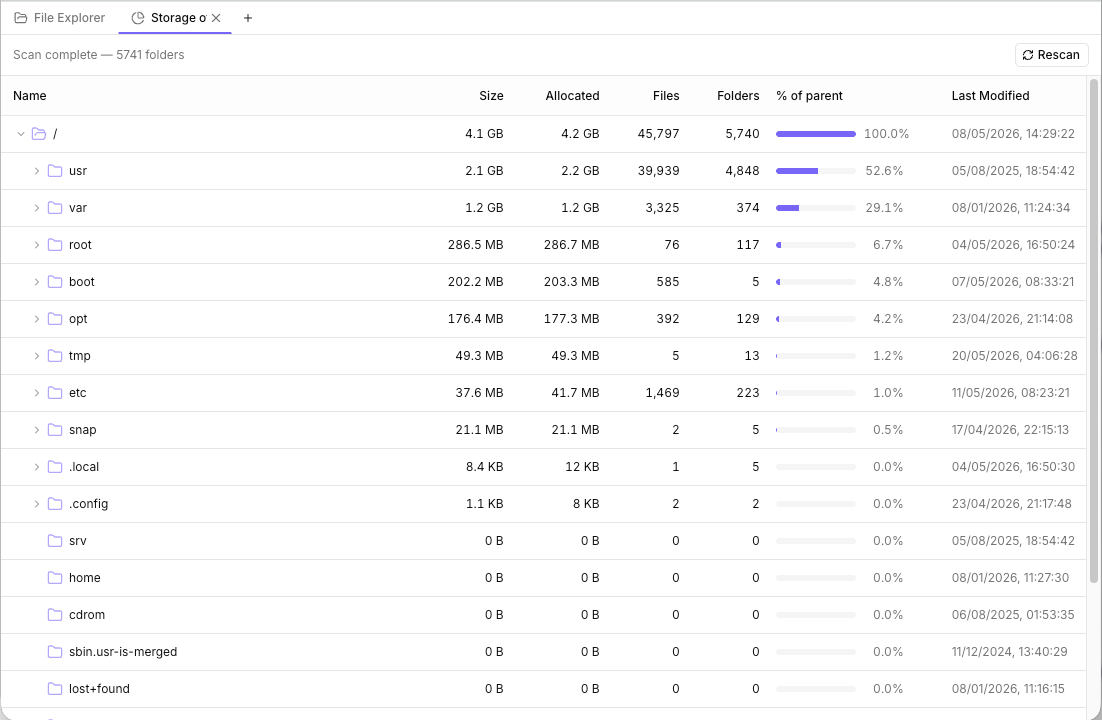
Storage Analyzer in the device toolbox — Scan a drive or folder on a remote device and see where space is going, with sortable folders, file sizes, and live progress. Logical and allocated sizes are shown separately for sparse or compressed files.


Toolbox time tracking — A live timer appears in the toolbox tab bar whenever you work on a device, with a popover for adding a note. Past entries are listed on the device page, and an entry whose heartbeat goes silent (laptop sleeps, network drops) is closed automatically.
OS Patch Management: per-update detail page and Emergency rollout * — Each Windows update now has its own detail page with a customer-spread radar diagram showing which devices the update is reaching and where it stands, plus a sortable device table. A new Emergency rollout workflow lets you push one or more updates immediately. * Important: the rollout engine that actually delivers updates to devices is not ready yet. You can view and plan rollouts in the UI; the actual deployment lands in a later release.


File explorer: multi-select with bulk delete and download — The remote file explorer now has checkboxes so you can select multiple files and folders (shift-click for ranges) and delete or download them together. Multi-file downloads are streamed as a ZIP built on the device.
Disk cleanup preview — Disk cleanup now starts with a preview that shows every step it would run and how much space it expects to reclaim. You pick what to delete before anything is removed.
VMware ESXi and vCenter check — A new monitoring check works against standalone ESXi hosts and vCenter servers, reporting host status, virtual-machine power states, and datastore capacity with configurable warning and critical thresholds.
SNMP in custom checks — Custom checks can now query SNMP devices directly from PowerShell or Bash scripts using new
Get-Snmpandsnmp_gethelpers, supporting SNMP v2c and v3 with authentication and encryption.Private community check repositories — You can now add your own private check repositories that require a username and password, manage them from a new dialog reachable from the Check Library, and test the connection before saving.
BitLocker inventory on Windows devices — Windows device inventory now shows BitLocker status per volume with a hover card that reveals encryption details and lets you reveal or copy the recovery key.

Shared clipboard in remote desktop — Remote desktop now shares the text clipboard in both directions with the remote Windows machine. A toolbar indicator surfaces the browser's clipboard permission state so you can grant access if it's blocking the sync.
Improved
Custom PowerShell checks: read input from
$checkInput— Custom PowerShell checks now read their input from$checkInput. The old name$inputcollided with a built-in PowerShell variable and could behave unpredictably. Important: if you maintain existing custom PowerShell checks, update them to use the new variable name.Remote desktop: automatic frame rate and codec — Remote desktop now defaults to Auto for frame rate and video codec, picking the best setting based on the remote machine's CPU and available hardware encoder. A small toolbar badge shows the value Auto chose.
Remote desktop: dedicated stats menu — Remote desktop has a separate stats menu with detailed connection numbers (frame rate, latency, bandwidth) so the settings menu stays focused on actual settings.
Check history charts show your thresholds — Check history charts now draw your configured warning and critical lines on every run. Check fields that take a list of items (services, drives, processes) suggest values discovered on the device with a Suggested badge.

Network interface check skips virtual adapters by default — The network-interface check now skips virtual adapters (VMware, Hyper-V, Docker, VPN tunnels, and similar) by default so results focus on real network cards. Switch the new toggle off to include them again.
Synology check surfaces the reason — The Synology check's detail view now shows a sorted list of the specific disk, RAID, I/O, or system issues that caused the current status, so you can see at a glance why a result is yellow or red.
Remote-access actions on the device hover card — The device hover card now offers Remote Desktop, Files, and (on Windows) Registry and Event Log alongside Terminal, so you can jump into any of the toolbox tools without opening the device first.
Remote-access actions in the Ctrl+K command bar — The Ctrl+K command bar offers the same remote-access actions on a device entry as the hover card: Remote Desktop, Files, Terminal, plus Registry and Event Log on Windows.
List pages: consistent layout and faster hover cards — List pages (devices, tickets, reports, integrations, check library, custom checks, patch cycles) now share consistent filter spacing and search-input width. Sidebar entries stay highlighted on detail pages, check cards keep their status color on hover, and device, user, and group hover cards open faster because they only fetch details when you actually hover.
UI label and terminology polish — Breadcrumbs now show an icon for each section, remote-desktop shortcuts are limited to the keys that actually work, and ticket terminology is consistent across the app in both English and German.
Backup monitoring template — The built-in backup monitoring template now targets the dedicated
backup-infrastructuretag so it matches the intended group of devices out of the box.Pending updates table fits long titles — Long titles in the pending updates table no longer break the row layout. Hover a cell to see the full text.
Fixed
Holding keys in remote-desktop games (WASD) — Holding letter keys (such as WASD) in a remote-desktop session now registers correctly in games and other apps that watch for held keys.
Agent install on a fresh macOS machine — Installing the agent on a fresh macOS machine now works reliably and shows a clear error if the server address is missing, instead of silently writing a broken configuration.
Disk-space check in built-in templates — Configuration packages created from the built-in templates now monitor all drives out of the box; the disk-space check previously produced an empty result until you edited it manually.
Report widgets on older device records — Report widgets that previously crashed on older device records now load reliably.
File explorer: Load More on a failed folder — When a folder fails to open in the file explorer (for example permission denied), only the Go Back action is shown. The Load More button no longer appears alongside the error.