octoja goes live with v1.0.1314! — Automations, a self-service app and more
On 1 July at 2 PM CEST, we present this release and much more in the octoja webinar.
https://us05web.zoom.us/webinar/register/WN_6RqlhYeaRL6DxbiTv_5hrA#/registration
Highlights
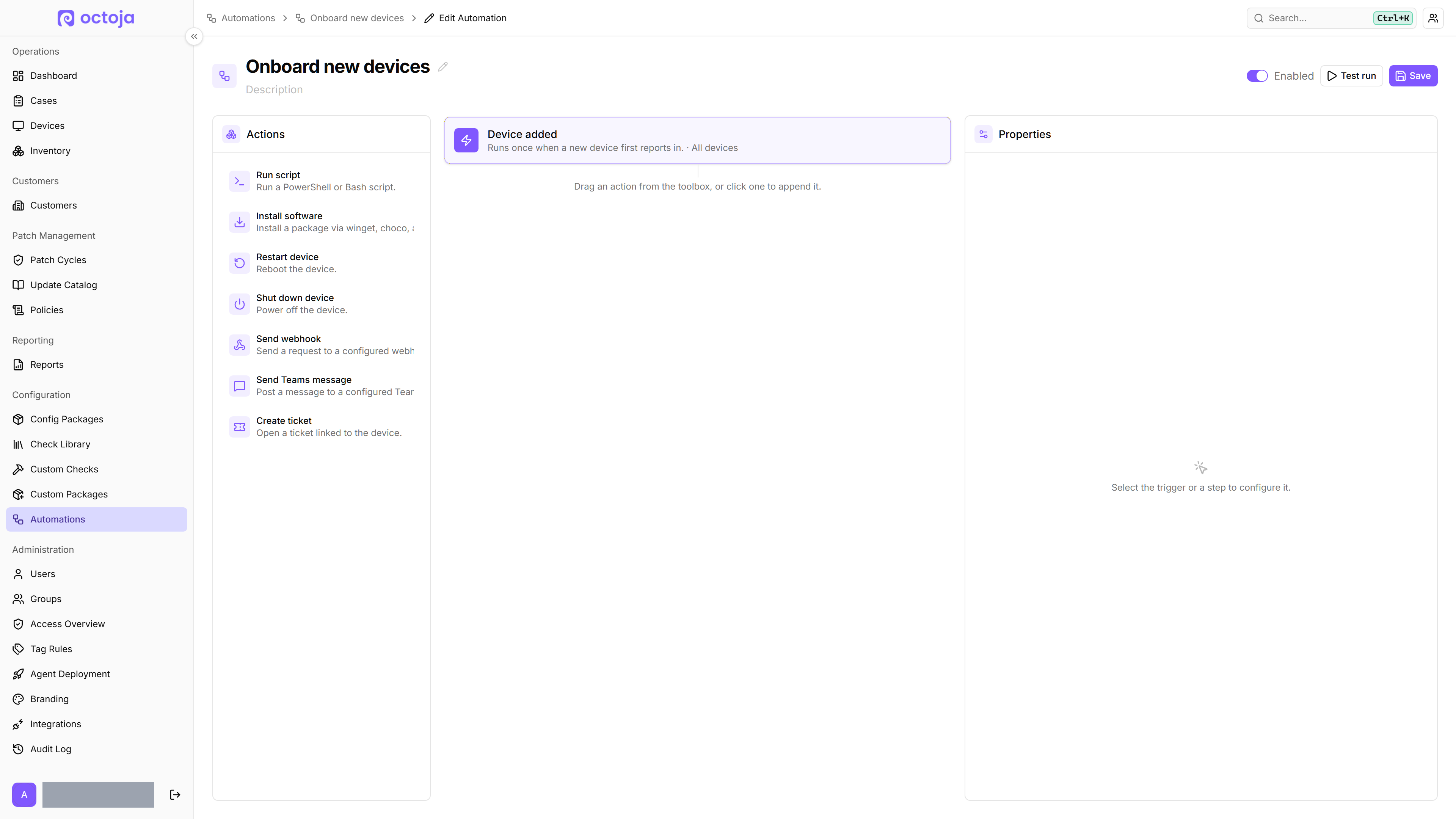
This is octoja's biggest release yet. The headline is Automations, a visual workflow builder that lets you wire triggers, conditions, and a growing library of actions into workflows that run across your devices. Alongside it comes a self-service app that lives right on your team's computers, on-device antivirus checks that no longer depend on a vendor cloud, one-click vulnerability fixing, scheduled report delivery, and an audit log for administrative changes. Tables across the whole product now sort, filter, and export the same way, the device page gained live per-adapter network speed and a full inventory history, and there's a long batch of patch-management, remote-desktop, and cross-platform reliability work underneath. The rest is polish and stability throughout.
New
- Automations: a visual workflow builder — Build multi-step workflows that run across your devices under Configuration → Automations. Drag actions onto a flow canvas, pick a trigger (Device added, on a Schedule, or Manual), and choose which devices it targets, with a live preview of exactly which devices match before you save.

- A library of automation actions — Each workflow runs an ordered list of actions on every matched device: run a script, install software, restart or shut down the device, send a webhook or Teams message, or open a ticket. Add a condition so a step only runs when it should, pass one step's result into the next, and use Test run to try the whole thing against a single device, watching each step on a live timeline before you commit.
- A self-service app on your team's computers — octoja now installs a small desktop app on each managed device so the people using those computers can help themselves: open support requests and follow the helpdesk's replies, with a desktop notification when an answer arrives. It carries your own branding and a product name you choose, and sits quietly in the system tray, always a click away.
- A software kiosk for self-service installs — The desktop app includes a Software Kiosk: a curated list of the apps you've approved for that device. People browse or search it and install with one click, so routine software requests never have to reach you, and each entry shows whether it's already installed or has an update available.
- Audit log — A new admin-only Audit Log page records notable administrative changes, starting with who opened or restricted device enrollment, and when.
- Resolve a vulnerability in one click — On a Windows device's Vulnerabilities tab, each finding now has a Resolve button: octoja matches the vulnerable product to the installed software, updates or removes it, and re-scans so the finding clears. No more jumping to software management to guess the right package.
- New monitoring checks — Fresh coverage joins the catalog: a UniFi Access Point (SNMP) and a UniFi Switch (SNMP) check for full per-device health where the generic UniFi check came up blank, a G DATA Antivirus check running directly on the device, and a server-side Lywand Vulnerabilities check that turns each device's scan results into a monitored alert. The Network Firewall (Appliance) check also gains WatchGuard and SonicWall as SNMP options.

- c-entron Service-Board integration — Connect c-entron Service-Board so a check alarm automatically raises a ticket on the matching customer and a recovery closes it, with customer matching and ticket type, priority, and category mapping under Administration → Integrations.
- Schedule and email your reports — You can now have report PDFs generated and emailed automatically on a recurring schedule. Open Scheduling on the reports page, pick which templates to send and who receives them, and octoja emails the report PDFs to your recipients each time it runs.

- Live network speed, now per adapter — The live Network card on a device page shows throughput for each network adapter separately instead of one combined figure, so the speed you see reflects real traffic rather than being inflated by stacked virtual interfaces. When a device has several adapters you can pick which to watch.
- Inventory history for every device — A new Inventory History tab shows a timeline of what changed and when: installed and removed software, services, pending updates, local users, and network adapters, plus hardware details as a clear before-and-after, scoped to the last 7, 30, 90, or 365 days.
- Send a notification to a signed-in user — From a device's action menu you can send a message straight to whoever is signed in on that machine. They get a pop-up they must acknowledge, and you immediately see whether it was shown, whether no one was signed in, or whether the device was offline.
- Digital signature for every service — The Services tab on a device gains a Signer column showing who signed each Windows service's program file and whether that signature is trusted, so you can spot unsigned or tampered service files across your fleet at a glance.
- Ask the user before you connect — You can now require the signed-in user to allow each remote desktop session before it starts. A permitted technician can still connect without consent in an emergency by entering a reason, which is always recorded. While the prompt is up, the connecting screen now tells you it's waiting for the user to approve, instead of looking like it's stuck waiting for the picture.
- Deploy .exe installers as custom packages — Custom packages now accept .exe installers, not just .msi. Drop an installer into the New Custom Package wizard, octoja reads its details automatically, and you can test it live on a device, publish it, and choose how it uninstalls.

- Quiet hours for each alert channel — Each channel in an alert configuration can be limited to a weekly window of weekdays and times, so you're only paged when that channel should be active. Switch on Catch up missed alerts and an alarm that would have fired off-hours is delivered once the window reopens, as long as the issue is still ongoing.
- Starter alert configurations — A fresh octoja instance now ships with four ready-made alert configurations (Immediate – Critical, Standard, Sustained Issue, and Critical – Multi-stage), so you have sensible escalation profiles from day one. Rename, edit, or delete them freely.
- Finer-grained permissions — Several capabilities are now their own permissions you can grant independently: opening a device's terminal (per device), creating brand-new custom tags, and managing the custom-check catalog and check repositories separately from the rest of monitoring. octoja now also matches each user's view to those grants — a device's buttons, the global search commands, and the device lists only offer the actions that user's group allows (Remote Desktop, Terminal, File Browser, Software Management, and so on), instead of showing an action that fails when clicked. Existing administrator groups keep these automatically.
- Password inputs in your own checks — When you build a check in Custom Checks, you can now mark an input as a Password so a secret like an API key is masked while you type it.

- Manage your single sign-on logins yourself — Your profile page now has an Authentication section where you can link a single sign-on account to your own login (Link Account), unlink one you no longer use, and even remove your password so you sign in through single sign-on only. octoja always keeps at least one way for you to sign in, so you can't lock yourself out.
- Lock a device automatically after remote desktop — A new Auto-lock after remote desktop agent setting locks a device the moment a remote desktop session ends, so a machine never sits unlocked after you disconnect. Set it as the default for matched devices in a configuration package or per device, and a technician can still override it for a single session.
- Manage your agent settings across the whole fleet — Config packages now carry an Agent tab where you switch on four agent settings for every device a package matches — Require user consent for remote desktop, Show agent in system tray, Software kiosk enabled, and Ticketing enabled (which lets people on the device raise support cases). A device gets a setting if any of its packages turns it on, so you set the rule once and it follows your fleet. Need a different answer on one machine? Open Agent settings from that device's action menu and set any setting to Default (from its packages) or Override it On or Off, just for that device.
Improved
- Sort, filter, and export across every table — Tables throughout octoja (users, customers, groups, the access overview, inventory, Cases, patch policies and cycles, integrations, and more) now share one layout. Click a heading to sort, drag to resize, reorder or hide columns, search the rows, and export the current view as CSV.

- Antivirus checks now run on the device — The Bitdefender, SentinelOne, ThreatDown, and Sophos checks now read protection status (agent health, real-time protection, definition age, and threats) directly on each device instead of polling the vendor's cloud console. You no longer need cloud credentials or tenant matching for these checks, most let you set your own warning and critical thresholds, and existing assignments keep working as they switch over.
- Group-scoped access reaches further — When a user's access is limited to certain customers, that limit now also covers patch policies and cycles, the update catalog, and configuration packages, so they only ever see and change items belonging to their own customers.
- A clearer integrations page — Administration → Integrations now groups connectors into clear sections, including Ticketing systems and Other platforms, each sorted alphabetically, and adds a search box so you can jump straight to the one you need.

- Richer report widgets — Check widgets in the report builder now show the check's name on the card, and you can narrow any check widget to specific devices or statuses. A new per-device check-history widget plots each device's own history chart inside a report, and check output now renders exactly as it does on the device page.
- Full per-job detail in Veeam results — The Veeam Backup & Replication check now shows ten more details for each job (last run, state and progress, backup type, app-aware processing, compression, the run's bottleneck, encryption, and more), so you no longer have to open the Veeam console to see them.
- SMART check watches every disk by default — Adding a SMART Disk Health check now starts with Monitor all disks switched on, so a new check covers every drive without you typing any device paths.
- Redesigned patch policy editor — The patch policy editor has a cleaner, card-based layout with at-a-glance ring summaries, and creating a policy is now a quick dialog that only asks for a name and drops you straight into editing.

- Software installs for all users by default — Deployments now install for every user of the device by default, so unattended rollouts succeed even when no one is signed in. Choose to install for the signed-in user only when a package belongs in just their profile.
- A faster Install Software dialog — Opening Install Software on a device now loads quickly instead of stalling while it gathers the device's installed packages; octoja warms the list the moment you hover the Install Software button.
- Alert timestamps in local time, not UTC — The time on Teams alert cards and alert emails now shows in the instance's configured time zone with the correct offset (default Europe/Berlin; your provider can set it), so recipients no longer have to convert from UTC in their head.
- Only connected ticket systems appear as channel types — When you add a channel to an alert configuration, the type picker now lists a ticketing system only if it's actually connected, instead of showing every possible integration.
- Lywand at a glance — The Vulnerabilities tab now shows when a device was last scanned, and the customers overview gains a colour-coded A–F security rank column you can sort by, so you can read your whole fleet's posture without opening each customer.

- A cleaner, sticky device page — The device detail page got a visual tidy-up (consistent cards, proper empty states, and live metrics that no longer wrap awkwardly on narrow screens), and the device's name and action buttons now stay pinned to the top as you scroll.
- See on the device when a technician is connected — The on-device app now shows a clear indicator while someone is connected remotely, so the person at the machine always knows a session is active.
- Repeat a schedule every few hours — Deployment schedules gain an interval mode, so you can run a software rollout every few hours instead of only daily, weekly, or monthly.
- Clearer error messages — Error messages now appear in your own language instead of occasionally falling back to English, and unexpected failures include a copyable reference code you can quote to support.
- Refresh a patch cycle on demand — A new Refresh now button on draft and approved patch cycles re-checks the cycle against your current devices right away, picking up newly pending updates and dropping ones that no longer apply, while keeping every decision you've already made.
- Alarm-config editing limited to alert managers — The buttons to add, edit, or delete alert configurations now appear only for users who can manage alerts, with a clear message if you lack the permission instead of a generic error.
- A more antivirus-friendly Windows agent — The Windows agent now does its update, inventory, and check work in a way that security tools are far less likely to flag, so it's less likely to be blocked or quarantined.
- Create a site while setting up a token — When you pre-assign a customer while configuring agent deployment or creating an installation token, you can now add a new site for that customer right there with the Add site button, instead of leaving to create it first. The site field appears as soon as you pick a customer, so even a customer's very first site can be created in the flow.
- A consistent Save button and Ctrl+S on every settings page — The Save button now sits in the same place — at the top of the page — across every edit, profile, and integration settings screen, and pressing Ctrl+S (Cmd+S on a Mac) saves from anywhere on the page. Saving with the keyboard now always applies the value you just typed, so changes like tag rules and branding no longer quietly revert.
- Smarter SMART disk monitoring — A SMART Disk Health check on a device with no SMART-capable disk (a VM or hardware-RAID box) no longer sits at a permanent Warning, so it stops nagging you for a state that is perfectly normal. And if a disk a device used to report suddenly disappears, octoja now raises a Critical alert reading “SMART disk is no longer detected — it may have failed or been removed”, catching a drive that died or was pulled.
- See your version on the login screen — The login page now shows your octoja version (for example v1.0.1314) just below the Sign in card. Click it to open the changelog and see what's new in this release.
- More reliable single sign-on, and link accounts for users — Two single sign-on improvements. First, sign-in works for more setups: some providers (notably Microsoft Entra) send a sign-in token without an email address, which used to be rejected even when the account was correct. octoja now also checks the username the provider sends, so those people sign in normally. Second, an admin can link a single sign-on account to someone else's login on their behalf. Open a user in user management, and under Authentication → Linked Logins pick the provider and choose Link now — octoja runs the sign-in once and connects that identity to the chosen user, so their future logins are matched reliably instead of relying on a matching email address.
Fixed
- Two-factor codes are now required with SSO — If you have two-factor authentication turned on, signing in through your SSO provider now asks for your authenticator code, just like a password login.
- Automatic patch cycles no longer silently go missing — A ring's next patch cycle could quietly stop appearing, for example after a cycle was cancelled or a window passed without it running. octoja now always lines up the next cycle, and one whose window passed without running is clearly marked Missed instead of vanishing.
- Patch cycles keep generating even with an odd ring schedule — An unusual maintenance-window schedule on one ring no longer quietly stops patch cycles from being generated, and the editor now warns you when none of a policy's rings has a valid window.
- Known-issue advisories show in the catalog — Windows update advisories that flag a problematic update now correctly appear against the matching updates in the Update Catalog, instead of staying hidden.
- Unmanaged devices keep their own Windows Update settings — Devices that aren't covered by any patch policy no longer have their built-in Windows Update settings taken over; octoja only manages updates on a device once a policy actually applies, and restores the original settings if it stops.
- RAID check sees Intel RST arrays — On Windows machines with Intel RST or hardware-controller RAID, the RAID Status check no longer reports a false failure for a healthy array, and a machine with no arrays at all no longer shows a false failure either.
- Network Interface check no longer fails on macOS — On Macs, the Network Interface check used to fail with an empty result; it now runs correctly and reports every interface on the device.
- The "-" key types correctly on German keyboards — Connecting from a Mac to a Windows machine on a German layout no longer mistypes “-” and other punctuation keys.
- Select and scroll again in remote terminals from a Mac — When connecting from a Mac, you can once again drag to select text and scroll inside a remote command window.
- Sessions open without a false failure — Opening a remote-desktop, terminal, file-transfer, or log-download session could report “connection failed” even when it had actually opened. These now open without that false error.
- Integration pages stay usable when a saved key goes bad — If a stored key for a ticketing or PSA integration became invalid, the whole detail page used to disappear, taking the Disconnect button with it. The page now renders through the error so you can always reconnect or disconnect.
- Codemeta OS connection is checked before it's saved — Connecting Codemeta OS now confirms your token and address actually work and shows a clear error if they don't, instead of saving a broken connection that failed on every later use.
- Customer matching no longer gets stuck — Saving customer matches for an integration could fail with a duplicate error you couldn't fix, because the conflicting entry belonged to a deleted customer. Saving now clears those stale matches so it goes through.
- Device status filters span your whole fleet — Filtering the Devices list by Critical, Warning, or Healthy now searches every device rather than just the current page, and counts a device under each status it actually has, so a device with both a critical and a warning check shows up under either.
- Rules and checks apply right after enrollment — A newly enrolled device's rule-driven tags and checks could take hours to appear; now a tag assigned by a rule immediately re-evaluates any check package or further rule that depends on it, so they show up within seconds.
- No more failed-logon noise on your servers — On domain-joined and remote-desktop servers, every inventory cycle was logging repeated failed-logon and security warnings in the Windows event log. The agent now collects the same information without triggering them.
- Delete a customer that has no devices left — Deleting a customer could fail saying it still had active devices even after you'd moved them all away; an empty customer now deletes cleanly.
- Switching an open alarm's delivery now takes effect right away — If a check was still failing and you changed an alert channel's delivery — say, switching it to Teams or pointing it at a different ticket system — the new delivery used to stay silent until the check recovered and failed again. octoja now picks up the change immediately, so the next failure goes out through the new channel. The check editor also shows an active-alarm badge next to the alert summary when a config has open alarms.
- Virtual machines now report their manufacturer and model — Some virtual machines, especially Hyper-V guests, were inventorying with an empty Manufacturer and Model, which broke rules that target devices by model. octoja now fills in these fields reliably, so model-based targeting works on those machines again.
- Special characters work in your own checks — A custom PowerShell or shell check that contained special characters — umlauts like Lüfter, a degree sign like °C, or an em-dash — could come back garbled, and in some cases broke the check entirely. It was worse for a saved check: it could fail when it actually ran even though the Test on its editor page looked fine. octoja now runs these scripts with the right text encoding, so the characters you typed in Custom Checks are exactly what runs on the device. Saved checks pick up the fix automatically — no agent update needed.